

Before you start
- You must be a company admin in Izumi.
- You need a Microsoft account that may register an app and give admin consent for Microsoft Graph (the roles needed are from the Microsoft documentation, not checked).
- The company must have at least one domain in Izumi.
- With the permission
Files.Read.Allthe app sees the libraries of all sites in the tenant. So in Izumi you choose only the library and the folders you want and map them to domains. Everything outside that is not imported. - The permission
Sites.Selected(stricter, only sites that the SharePoint administrator approves for the app) is offered in the form, but the form itself says: “That the import works under this permission is not verified yet.” We did not try it live. - Changing sharing in SharePoint does not change access in Izumi. Access is decided by domains and roles.
Register the app in Microsoft Entra ID
These steps are done in the Microsoft portal, in English. The permissions screen was captured live. The other steps are from the install guide and the notes from our test tenant.1
Create the registration
In Microsoft Entra ID open
App registrations, then New registration. The name is your choice, the account type is My organization only (single tenant). A redirect URI is not needed.2
Add the permission and consent
In 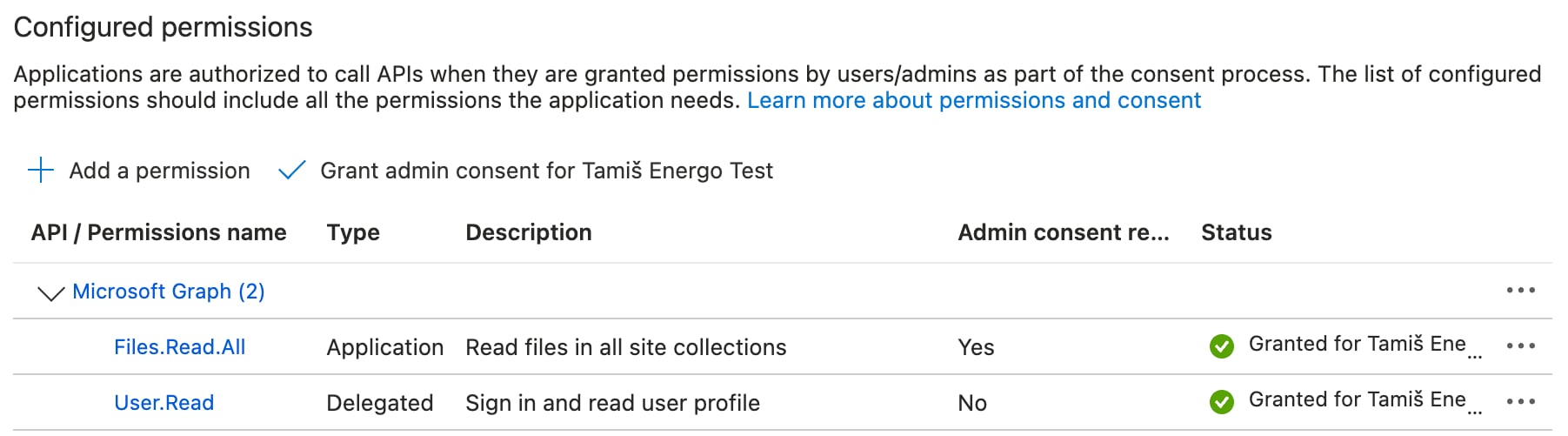
API permissions add Microsoft Graph, type Application permissions, permission Files.Read.All. Click Grant admin consent for <your tenant>. Afterwards you see Files.Read.All, type Application, Admin consent required: Yes and status Granted. The permission User.Read comes by itself with a new registration and is not used.3
Create a client secret
In
Certificates & secrets create New client secret and copy the Value right away, not the Secret ID. After you close the screen the value cannot be seen again. A secret expires: write down the expiry date, because after it the import stops until you enter a new secret.4
Copy the identifiers
On the
Overview screen copy Application (client) ID and Directory (tenant) ID.Granted does not appear at once, wait a few minutes and try again. In our test tenant the first attempt failed because of propagation and the second one passed.
Connect the source in Izumi
1
Choose the source type
Open Sources and click Add source. Choose SharePoint/OneDrive. The dialog with the three types looks like the one on the page about the Google Drive source.
2
Fill in the form
The dialog Connect SharePoint or OneDrive has the fields Source name, Tenant ID, Client ID, Client secret (under it: “Sent once and stored encrypted.”), App permission, SharePoint site address and Library ID (optional). App permission has two values, Files.Read.All (default) and Sites.Selected (stricter). Choose the one you gave the app in Entra. For the tenant root the address looks like 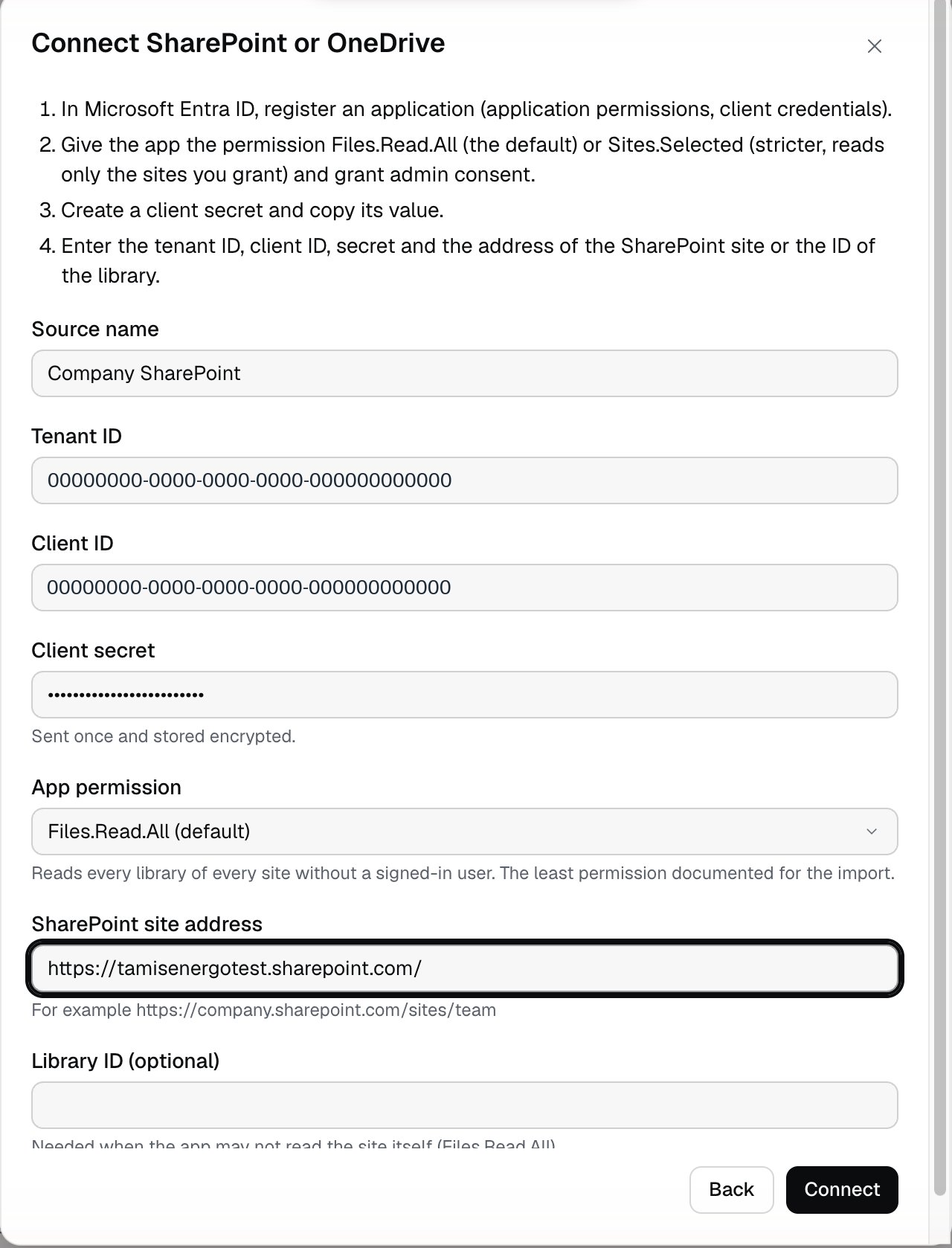
https://company.sharepoint.com/, and for a site below the root like https://company.sharepoint.com/sites/team. For a site below the root Izumi will likely ask for the library ID (from the code, not checked live).3
Connect
Click Connect. Izumi asks Microsoft for a token and reads the list of libraries. Success says “Connected. Choose what is read under Rules and scope.” The card has the label New and a Connected row. The secret is sent once and stored encrypted. Izumi cannot read it back, so you do not see it anywhere after sending.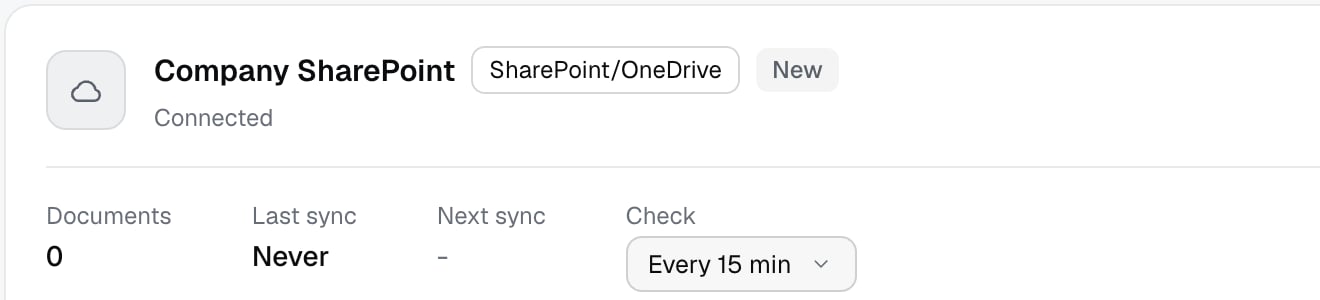
Scope, rules and import
1
Choose libraries
Click Rules and scope. Under What Izumi may read are the libraries of the site (in our test one,
Documents, already selected). Save scope is off until you change the selection. Changing the scope requires a new dry run.2
Run the dry run
Click Dry run. The card says Dry run in progress, then Dry run ready. In the test that took about 10 seconds. The dry run changes nothing in Izumi.
3
Map the library to a domain
Under Import rules select the library, choose a domain from the menu and leave With subfolders. Under Selected you see the library with the domain and the button Remove. File types, Include names (patterns), Exclude names (patterns), Modified from (inclusive) and Modified until (exclusive) work the same as for Drive.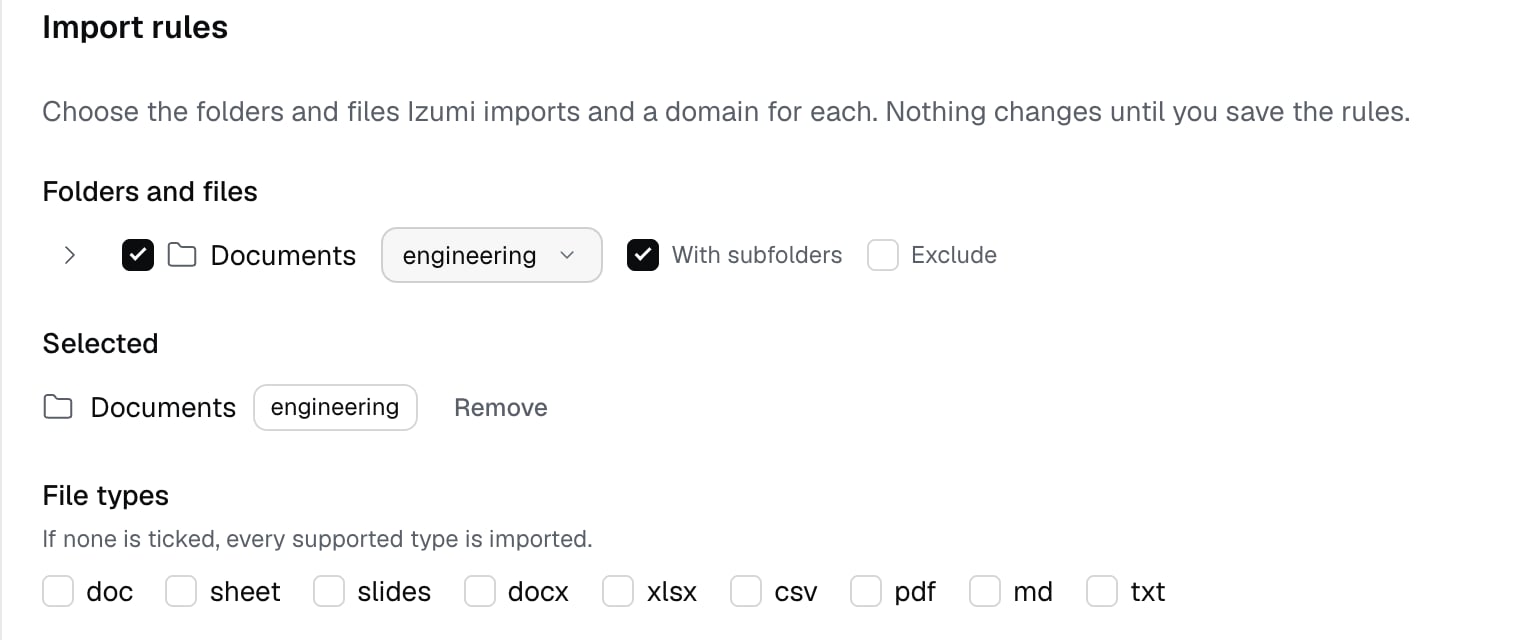
4
Save the rules and start the import
Save rules asks for a confirmation with the number of documents the next import will add. After saving, the dry run starts again by itself. When it is ready, Start import is on. During the import the card shows the running counts. At the end the card shows OK, the number of Documents, Last sync and Next sync.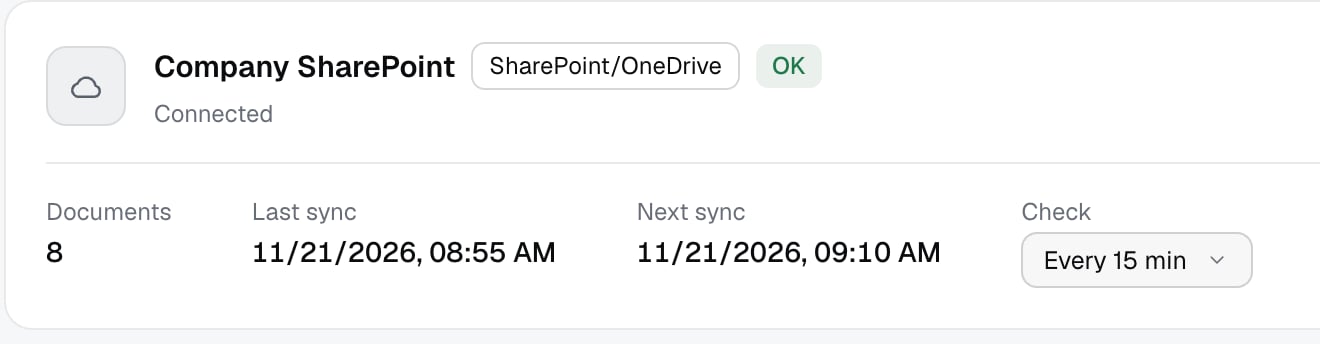
5
The rest is the same as for Drive
The button becomes Import now, the Check field is 15 minutes by default (from the code), and Pause, Delete source and Import report work as for Drive. Deleting removes the source and everything that was imported.
If the app may not read the site (from the code)
If the app may not read the site itself, Izumi does not connect the source and saves nothing. By the code and the install guide this is expected withFiles.Read.All alone (it has no Sites.Read.All), especially for a site below the root. For the tenant root it worked without a library ID in our test. It says: “The app may not read the site data. Find the library ID with the Graph calls below, enter it and send again.” Under the message are two calls:
GET https://graph.microsoft.com/v1.0/sites/<company>.sharepoint.com:/sites/<name>?$select=idreturns theidof the site.GET https://graph.microsoft.com/v1.0/sites/{site-id}/drives?$select=id,namereturns the list of libraries with theirid.
id in the field Library ID (optional) and click Connect again.
Limits
- Read-only.
- Izumi sees only what the permission of the app allows. With
Files.Read.Allthat is all sites of the tenant, so the scope and the rules in Izumi decide what is imported. - The client secret expires. The form does not show the expiry date or a warning before expiry (from the code). Write the date down yourself.
- For the tenant root with
Files.Read.Allthe library ID was not needed (checked live).
Troubleshooting
-
“Microsoft Entra refused the client secret. Check that it is the secret value and that it has not expired.” The most common cause is a copied
Secret IDinstead of theValue, or the secret expired. The error shows in the dialog and nothing is saved until connecting succeeds.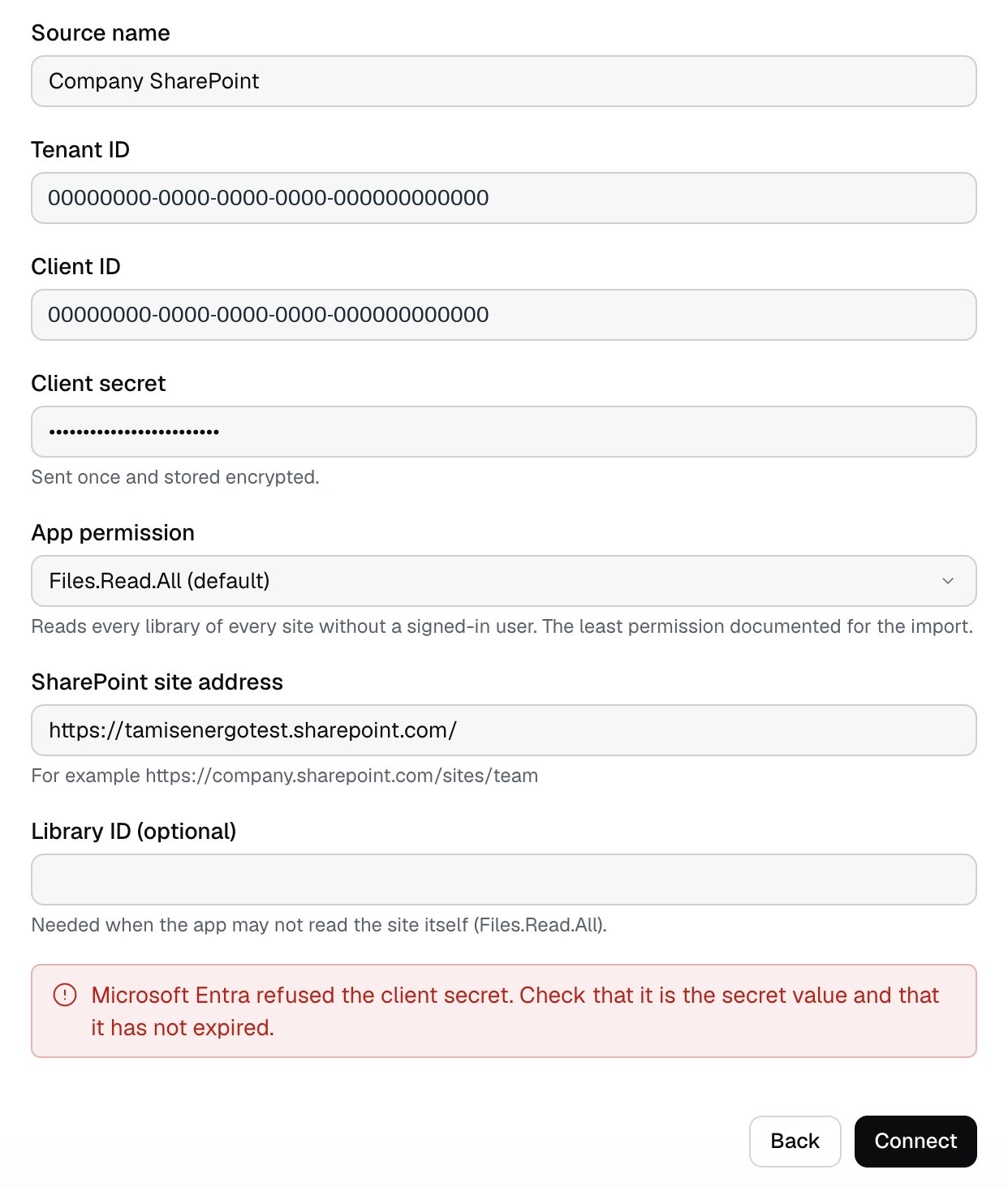
- “Enter a GUID (for example 00000000-0000-0000-0000-000000000000).” Tenant ID or Client ID is not a GUID.
- “Enter the client secret.” The Client secret field is empty.
- “Enter the site address or the library ID.” Fill in SharePoint site address or Library ID (optional).
- “Microsoft Entra does not know this tenant. Check the tenant ID.” (from the code)
- “The tenant has no application with this client ID.” (from the code)
- “Microsoft Entra refused the credentials.” (from the code)
- “Microsoft Graph found no SharePoint site at this address.” Check SharePoint site address (from the code).
- “Microsoft Graph found no document library with this ID.” Check Library ID (optional) (from the code).
- “The app may not read this library. Grant it Files.Read.All, or Sites.Selected with read access to the site.” (from the code)
- “Microsoft Graph is not reachable now. Try again later.” (from the code)
- The label Reconnect required with “Reconnect to resume the sync.” (on Structure & health: “SharePoint sync failing. Microsoft refused the access token.”). The secret expired or was revoked after connecting. Click Reconnect and enter the app credentials again, because the old secret cannot be read back (from the code).