

How it fits together
- A company has members. A member sees only the documents of the domains where they have a role.
- A Reader reads and searches the documents of the domain.
- An Editor reads the same as a reader, sends web clips to the domain and approves or rejects proposed notes of that domain (see Review queue).
- A Company admin manages members, domains, sources and settings. An admin is not automatically an editor of any domain. You give them the editor role like any other member.
- Documents, sources and access log entries belong to the company. Another company does not see them.
Domains
1
Open the Domains section
The table has the columns Slug, Name (sr), Name (en), Description, Members, Documents, Status and Actions. The status is In use or Archived. The Documents count includes only domains where you also have a role. For the others it says “You have no role in this domain, so its documents are not counted for you.”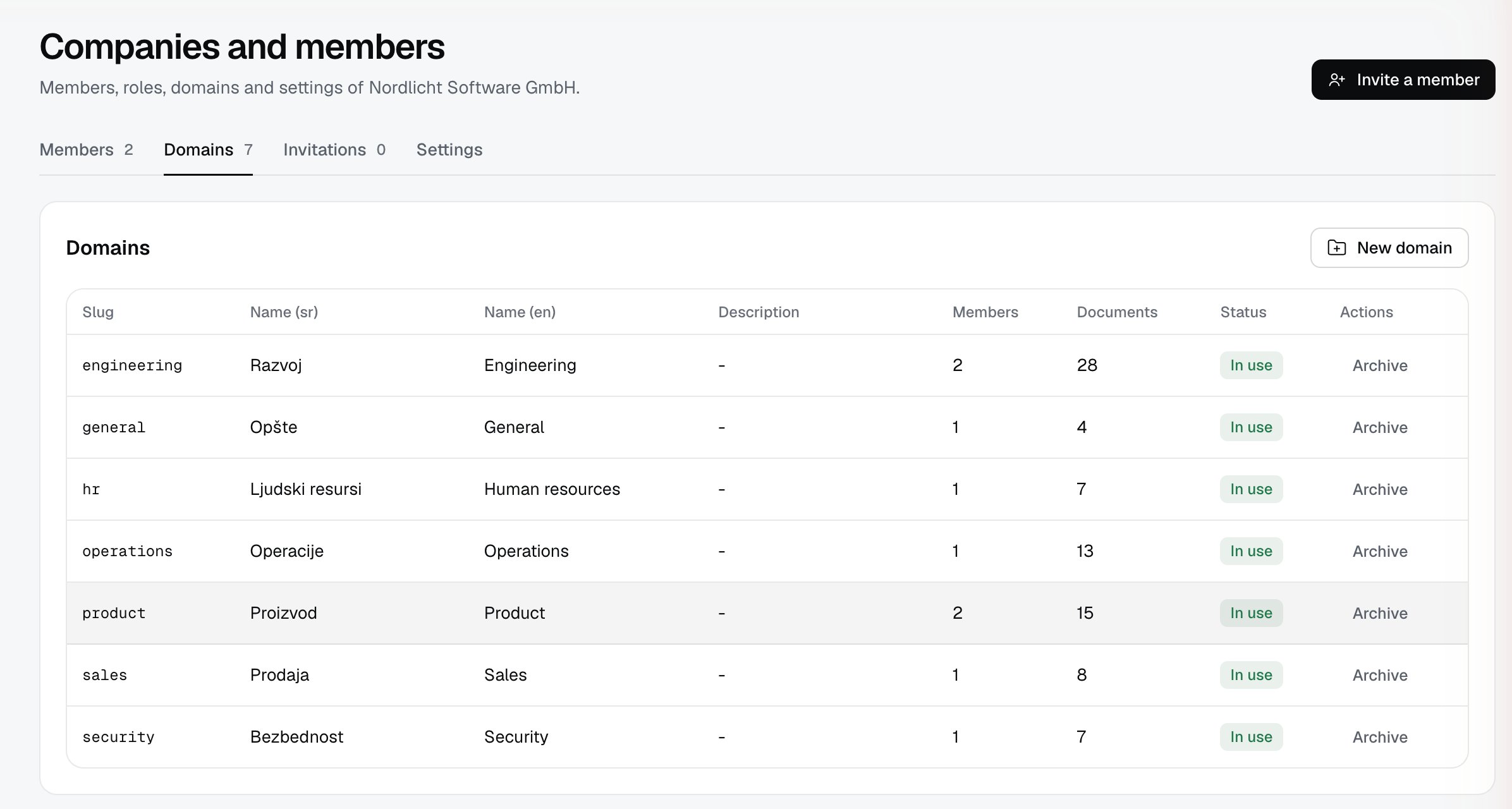
2
Create a domain
Click New domain. The fields are Slug, Name (sr), Name (en) and Description. The slug has lower case letters, digits and dashes, 2 to 40 characters, starts with a letter or a digit, does not end with a dash or contain two dashes in a row, and must be unique in the company. A name has at most 120 characters. Click Create domain.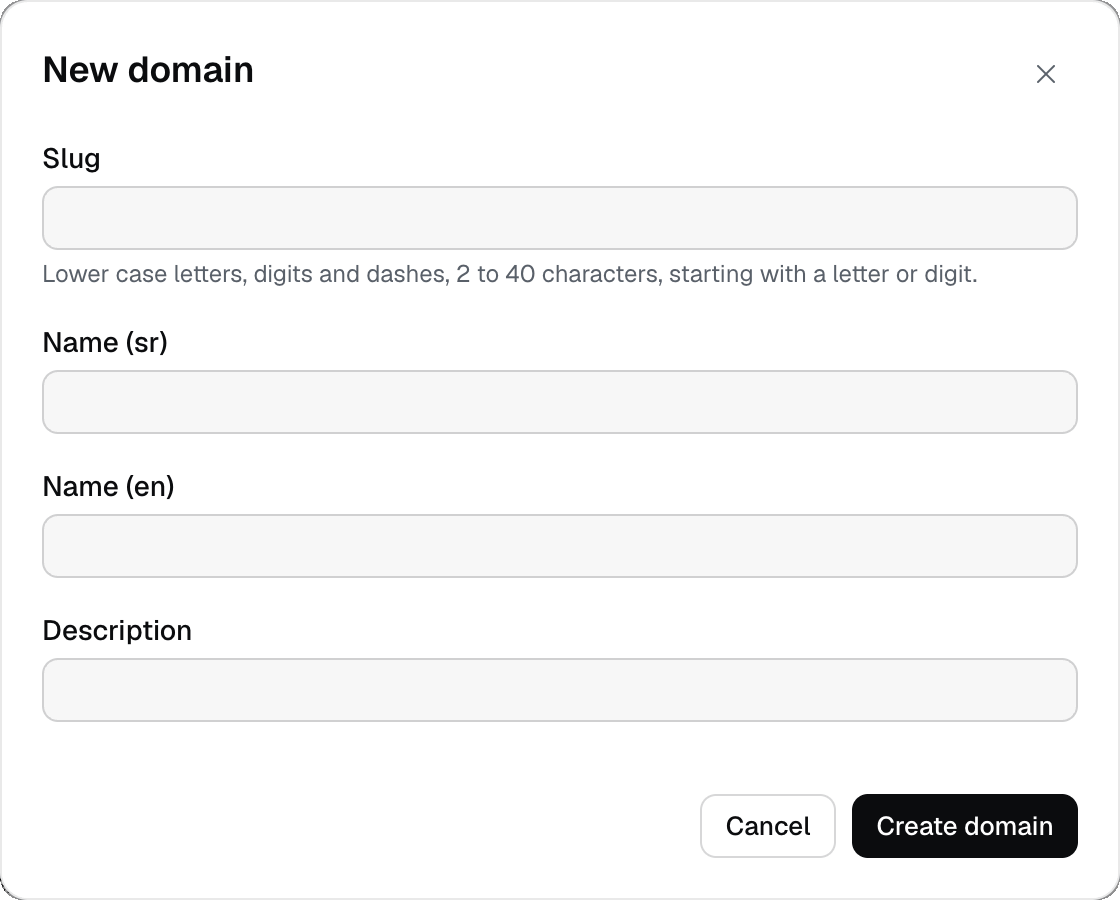
3
Archive or restore a domain
Archive in the Actions column takes a domain out of use, Restore brings it back. An archived domain does not delete documents, but roles in it no longer give access and new imports do not go into it (from the code).
4
Give roles
Roles are given in the Members section or in the invitation dialog. The steps are on the page People and invitations.
Company settings
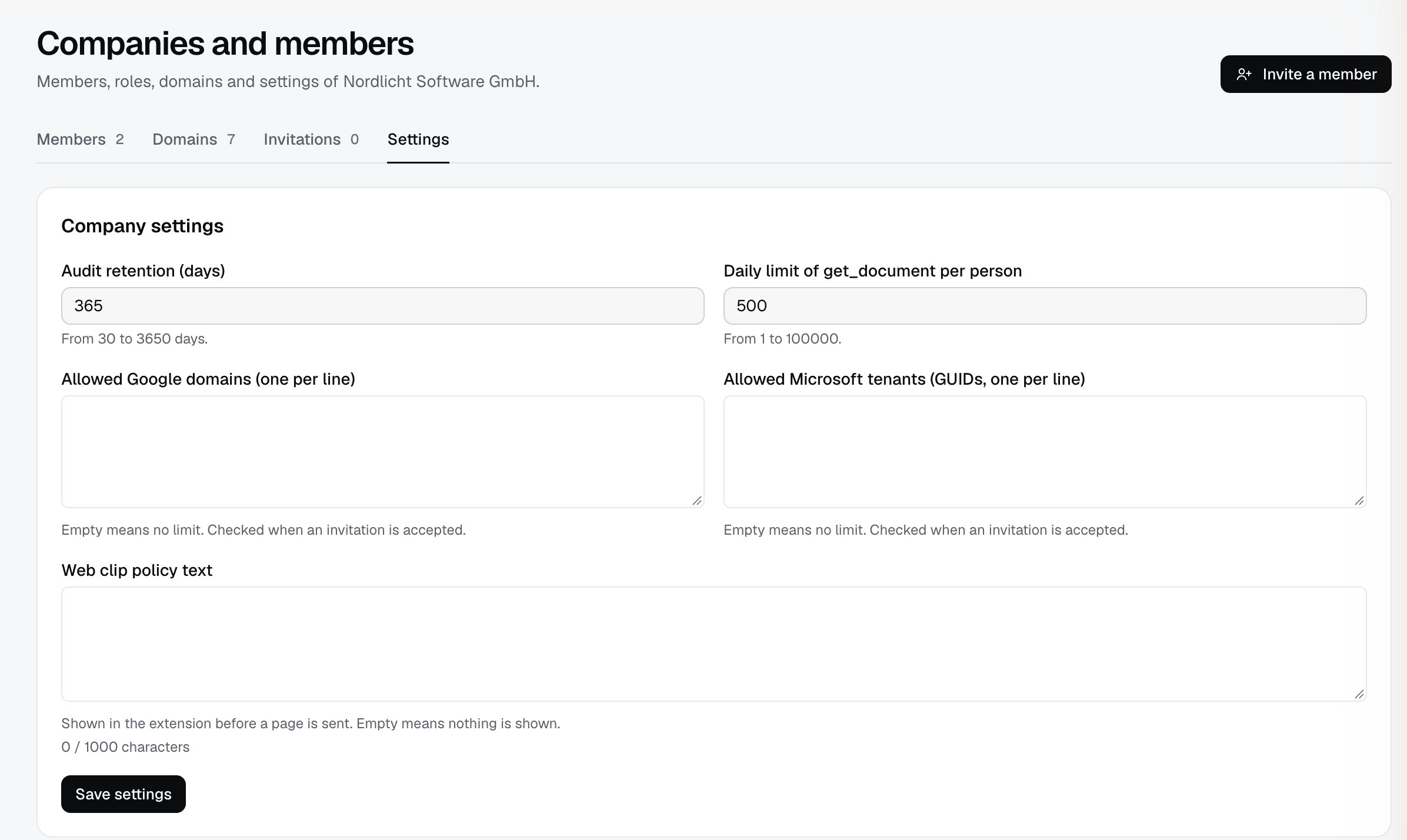
The Settings section saves all values with one click on Save settings.1
Look at the settings
- Audit retention (days): from 30 to 3650 days. After that period old entries are deleted, see Deletion and retention.
- Daily limit of get_document per person: from 1 to 100000. This many
get_documentcalls per UTC day are allowed per token or connected app. Each page of a document is one call (from the code). - Allowed Google domains (one per line) and Allowed Microsoft tenants (GUIDs, one per line): at most 20 entries in each field.
- Web clip policy text: up to 1000 characters, the counter is next to the field.
2
Restrict sign-in by organization (optional)
When at least one of the two fields is filled in, a person who accepts an invitation must sign in with an account from that list: a Google account with an allowed domain, or a Microsoft account from an allowed tenant. Empty fields mean no restriction. The check is done only when an invitation is accepted (from the code and the text in the settings).
3
Enter a web clip policy text (optional)
Everyone who uses the web clip extension sees the text before sending a page. An empty field means nothing is shown. How the text looks in the extension is on the page Source: upload.
Limits
- You cannot create or delete a company from the web page.
- The slug of a domain does not change after creation (from the code: editing a domain changes names and description).
- At most 20 Google domains and 20 Microsoft tenants per company.
- If you fill in only Google domains, Microsoft accounts cannot accept an invitation, and the other way round. Enter both if you need both (from the code).
- The restriction by domain or tenant does not check members who already have an account, only the acceptance of a new invitation (from the code).
Troubleshooting
- “A domain with this slug already exists.” Slugs are unique in a company. Choose another one.
- “Use lower case letters, digits and dashes (2 to 40 characters).” The slug must not have spaces, capital letters or diacritics.
- “Not a valid domain name: …” or “Not a valid GUID: …” One of the entries in the Google domains or Microsoft tenants is not valid. Fix it or delete it.
- “At most … entries.” Cut the list down to 20 entries.
- An invited person sees “This company does not allow sign-in from this account (its allowed domains or tenants). Ask a company admin.” Check whether their Google domain or Microsoft tenant is on the list. With empty lists there is no restriction.