

Before you start
- You must be a company admin. The menu items Companies and members, Sources and Import report are visible only to admins (from the code).
- The company must exist. Companies are created only with an operator command on the server (from the install guide), not from this page. The page works on the company chosen in the header.
- Create at least one domain before you give roles. Without a domain the invitation dialog says “There are no domains yet. Create one first to give roles.”
Invite a new member
1
Open the dialog
Click Invite a member at the top right. The dialog has the fields Email, Company admin, Support (access for at most 7 days, no admin rights) and Access ends at (optional). Below them is one row “Role in” plus the domain name for each domain, with the choice No role, Reader or Editor.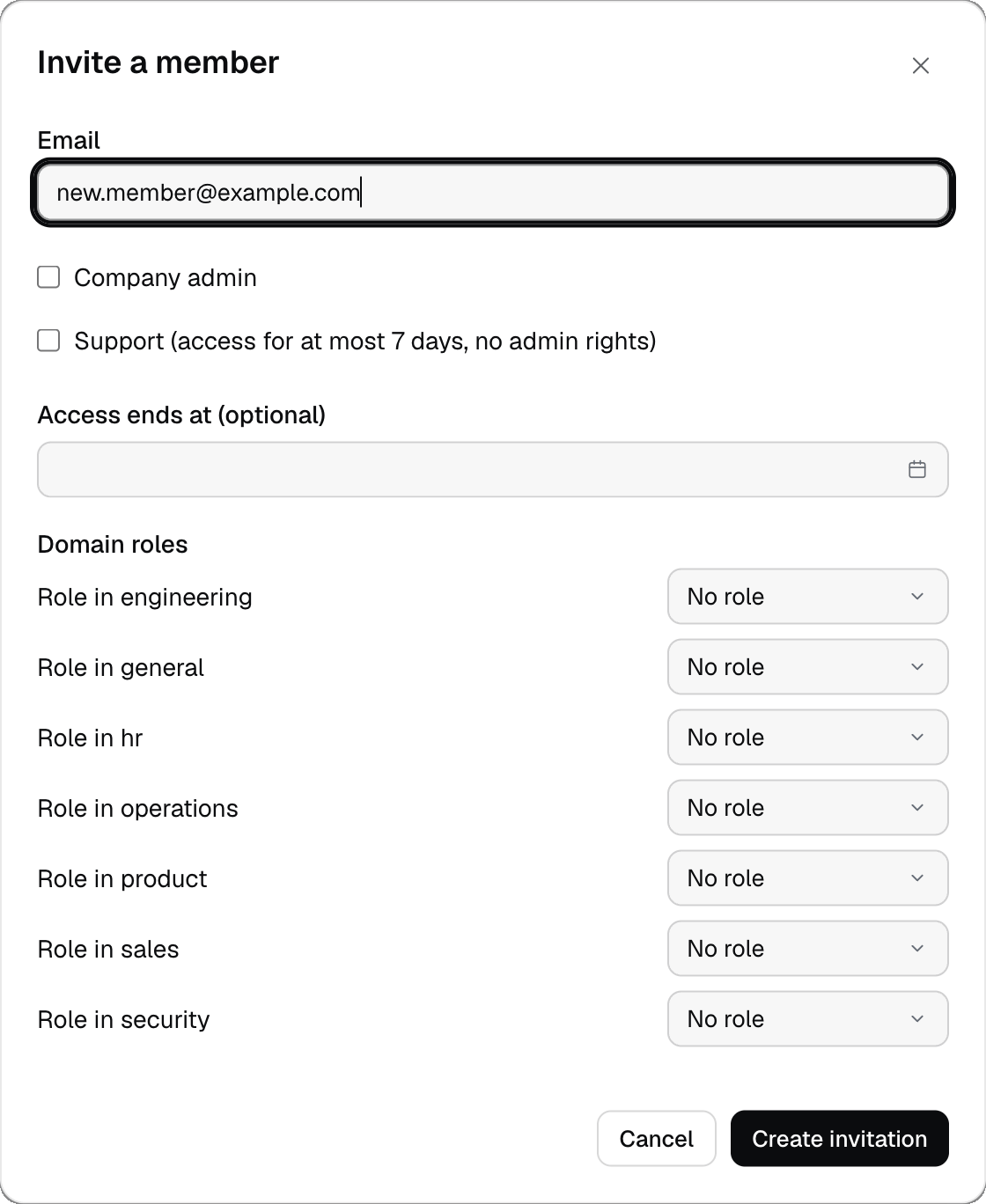
2
Create the invitation
Enter the address, choose the roles and click Create invitation. Izumi shows the Invitation link only once: “The link is shown only once. Send it to the invited person; it works for 72 hours and once.” Click Copy, then Done.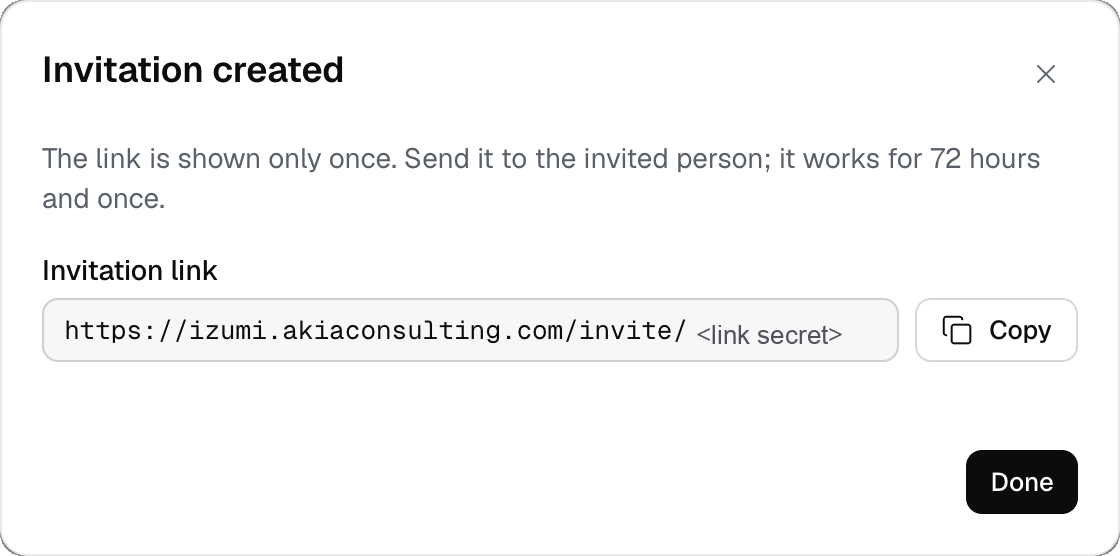
3
Send the link yourself
Izumi does not send email (from the code). You send the link through a channel you trust. The person opens the link, sees “You are invited to” followed by the company name, and signs in with the account that has the address from the invitation (from the code).
4
Follow pending invitations
The Invitations section (the count is next to the title) shows Pending invitations: Email, Admin, Role, Access ends and Valid until. Revoke cancels the invitation and says “The invitation was revoked.”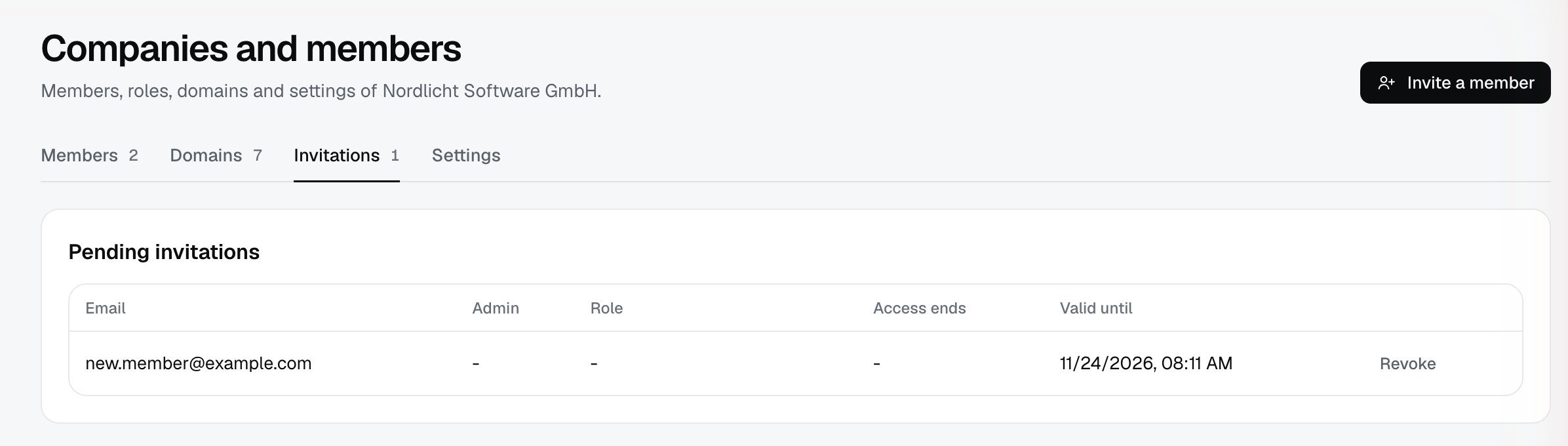
Manage members
1
See the list
The Members section is a table with the columns Member, Admin, Domain roles, Status and Last sign-in. Above it are a search by name or email and the filters Domain, Role and Status.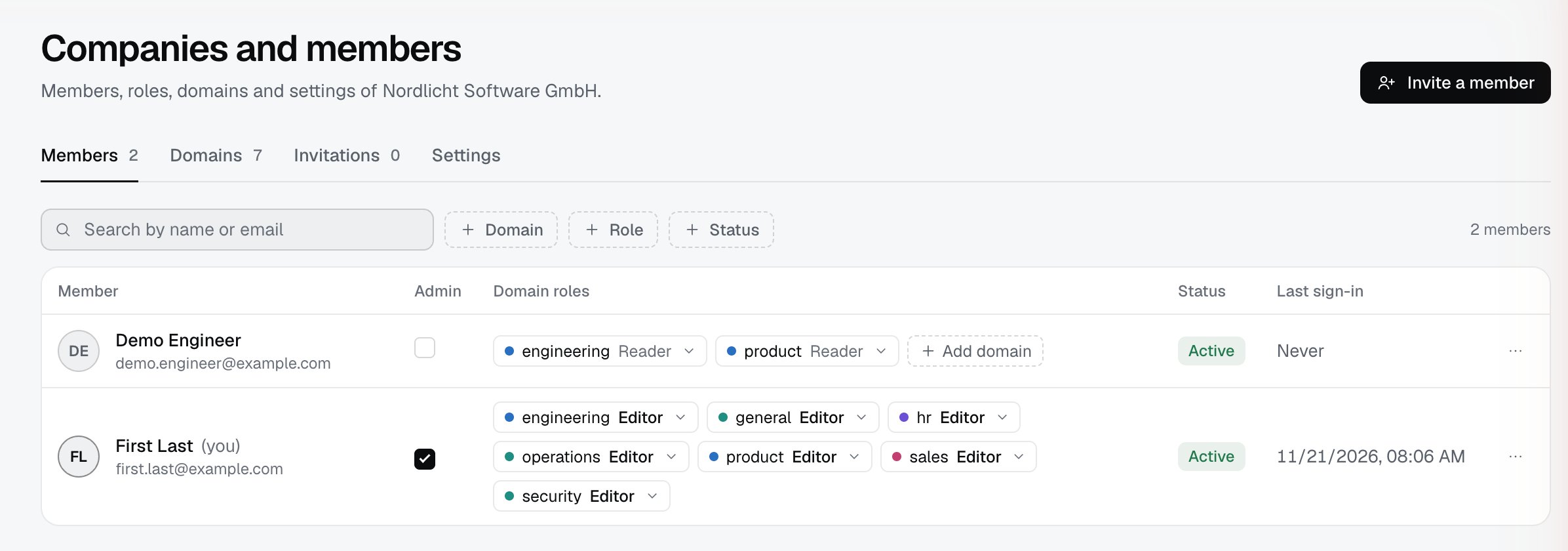
2
Change a role in a domain
Each role is a chip of the form 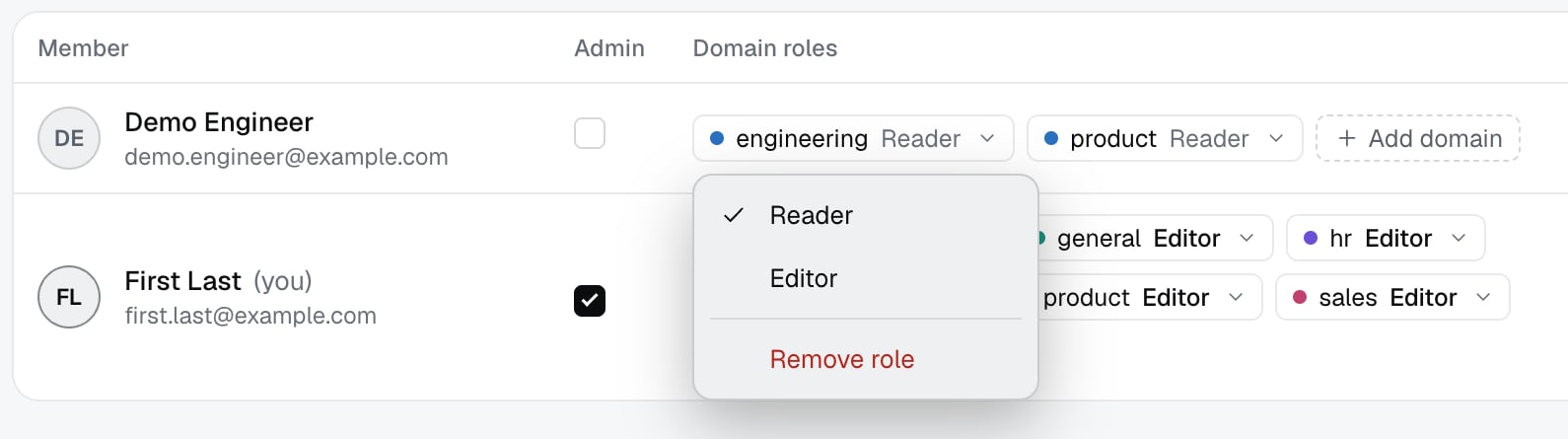
domain Role. Clicking the chip opens a menu with Reader, Editor and Remove role. Add domain adds a role in one more domain.3
Open the member menu
The menu at the end of the row has Profile, End date, Suspend (afterwards Activate) and Remove.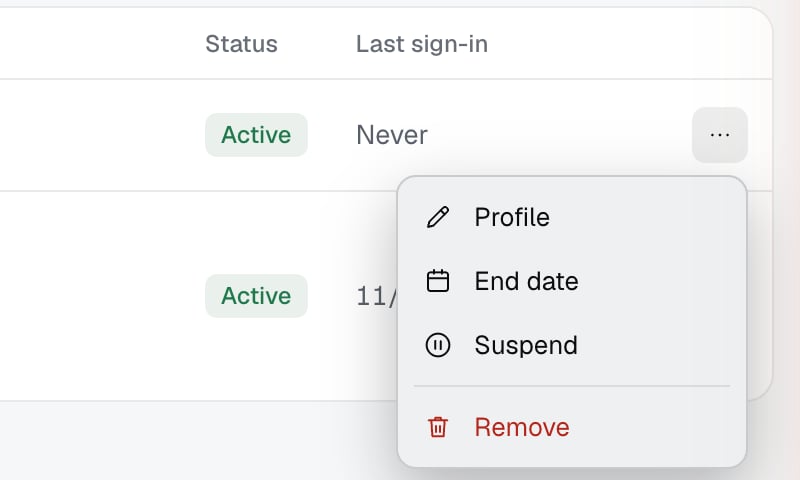
4
Set an end date
End date opens a dialog with the field Access ends at. After that date the member no longer has access. The date must be in the future and at most 365 days ahead (from the code).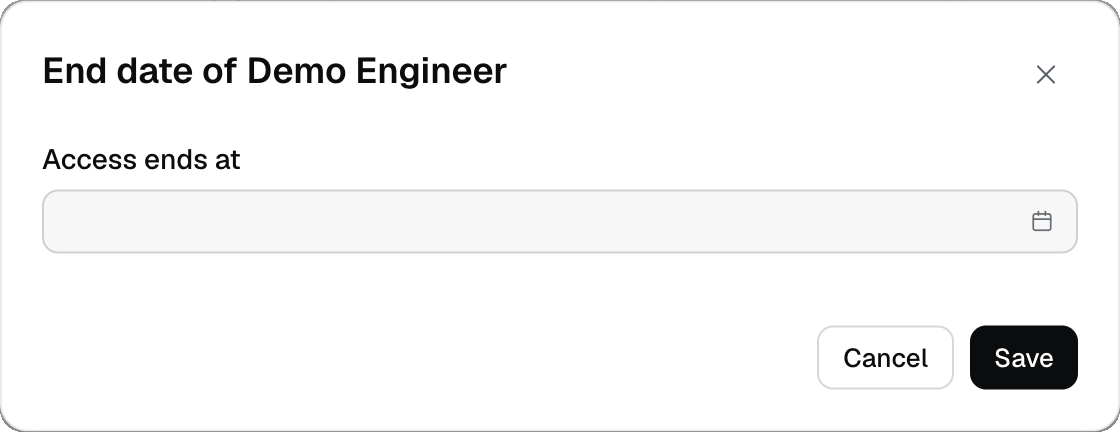
5
Fill in the profile
Profile opens the fields Title and Responsibilities (one per line): up to 200 characters per line and up to 20 lines. The data is stored with the member (from the code). Where exactly it is shown was not checked live.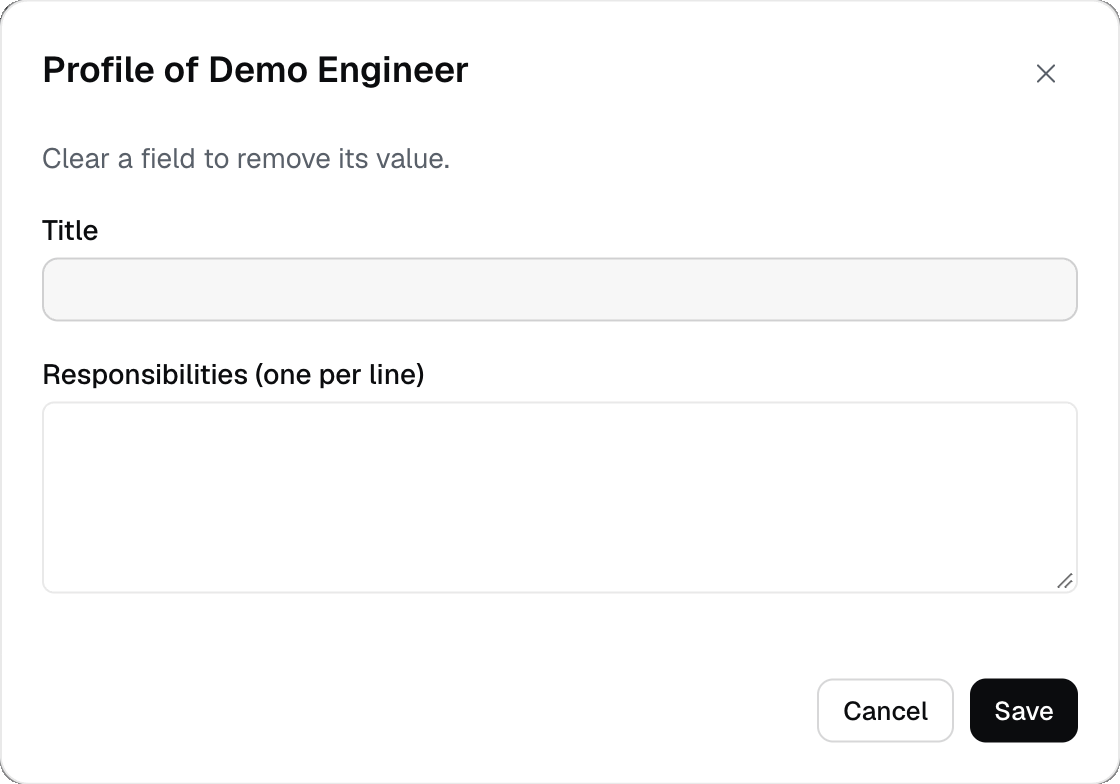
6
Set or remove admin
The Admin box in the row gives or removes the admin right. A company must keep at least one active admin without an end date. If you try to break that, the server refuses the change and nothing changes.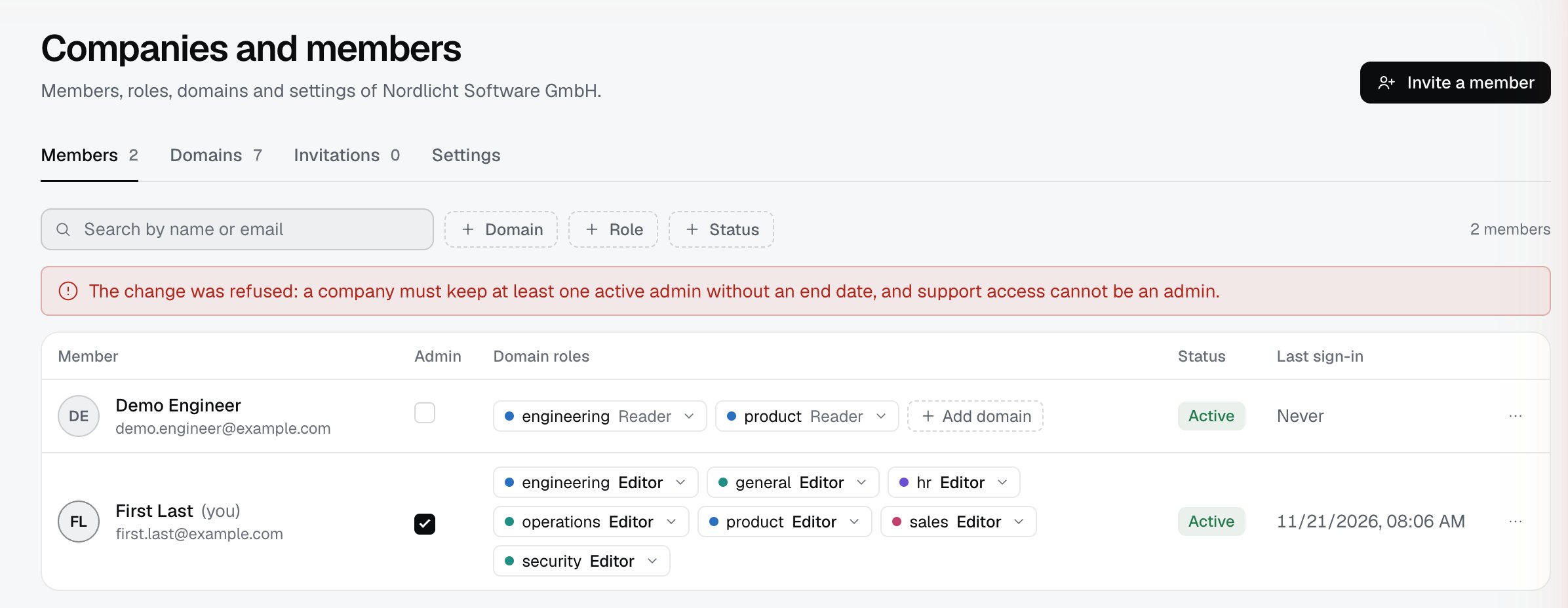
Limits
- A company admin is not automatically an editor of any domain. You give the editor role separately, per domain.
- An invitation is valid for 72 hours and can be used once. The link is shown only once.
- A new invitation for the same address replaces the pending one (from the code).
- Support access lasts at most 7 days and cannot be admin. Clear the support preset (allows an end date after 7 days) in the end-date dialog lifts that limit (from the code).
- The account the invited person uses must have the address from the invitation. A restriction by Google domain or Microsoft tenant is checked when the invitation is accepted (from the code, see Companies, domains, roles).
Troubleshooting
- “The change was refused: a company must keep at least one active admin without an end date, and support access cannot be an admin.” You are removing admin from the only admin, or giving admin to a support account. Make another admin first.
- “The invitation could not be created.” The address is not valid or the server refused the request. Check Email and the end date.
- The invited person says the link does not work. The link expired (72 hours), was already used, or you revoked it. Create a new invitation.
- “There are no domains yet. Create one first to give roles.” Create a domain in the Domains section.