

Search from Home
1
Type a query
On Home, click the Search the company’s documents field, type your query, and press Enter or Search. The query can be in English or Serbian, in Latin or Cyrillic script.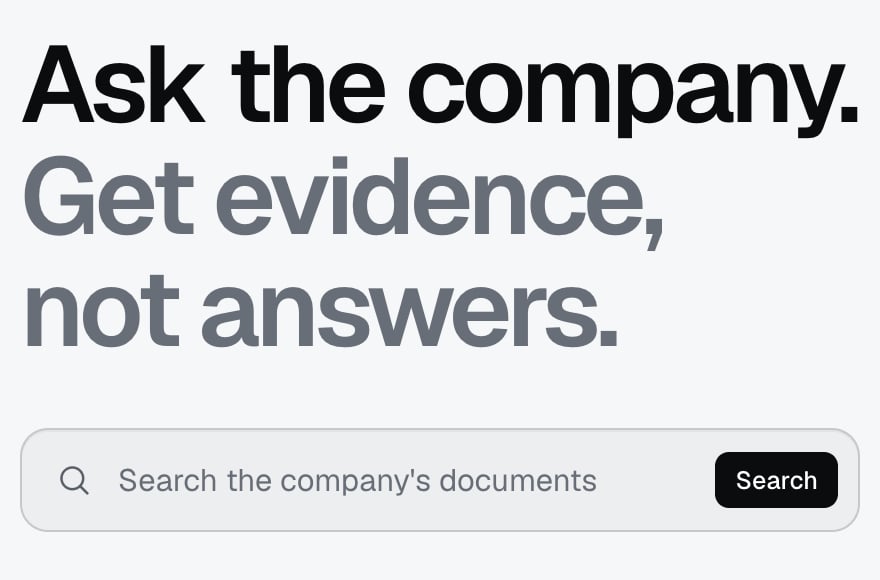
2
Read the results
Documents opens with your query and the number of documents found. Each result has a title, domain, source, date of last change, the path to the passage, and the passage itself. The words from your query are highlighted in orange.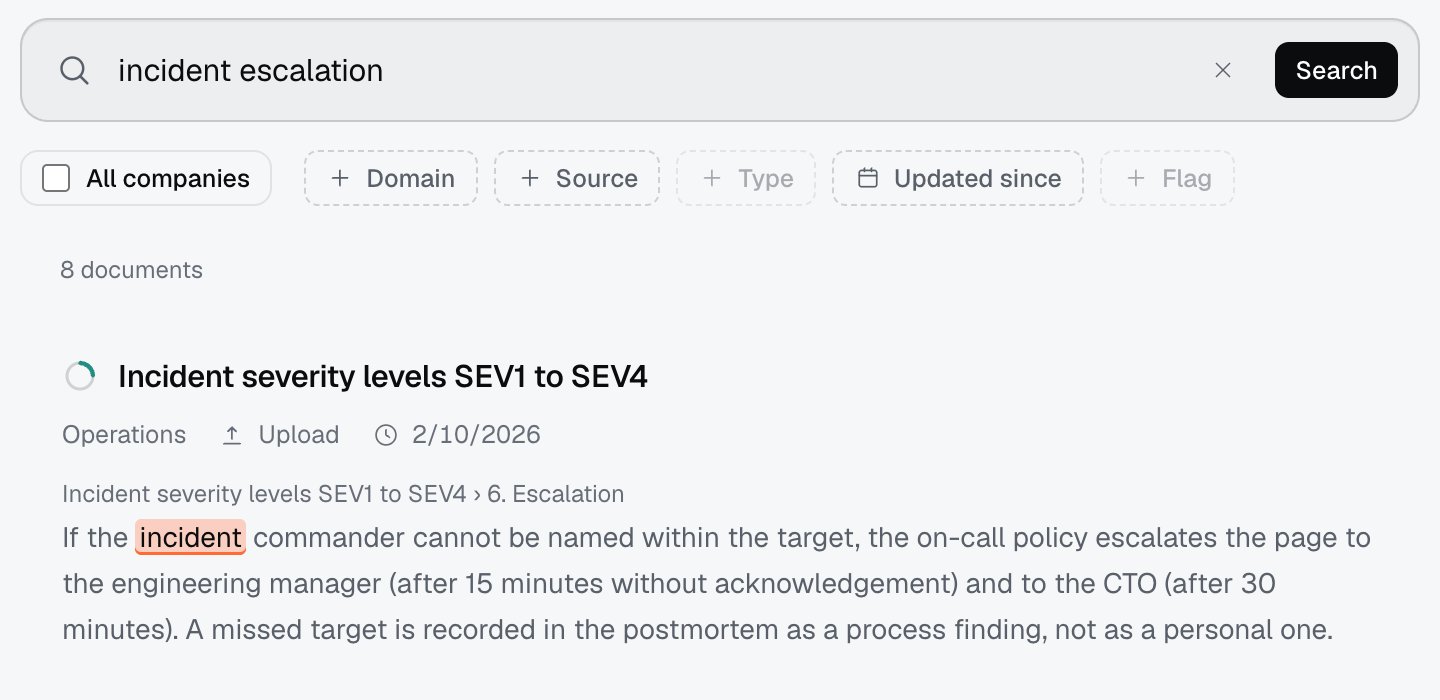
3
Narrow the results
On the same screen you change the query and add filters: Domain, Source, Type, Updated since, Flag. All companies searches every company you belong to, and shows only when you are in more than one company.
4
Check the passage
Click the eye icon (Preview) on a result. A panel opens on the right with the path to the passage (source, document, passage), the contributors, and the passage with a copy icon (Copy citation). Open document takes you to the full page.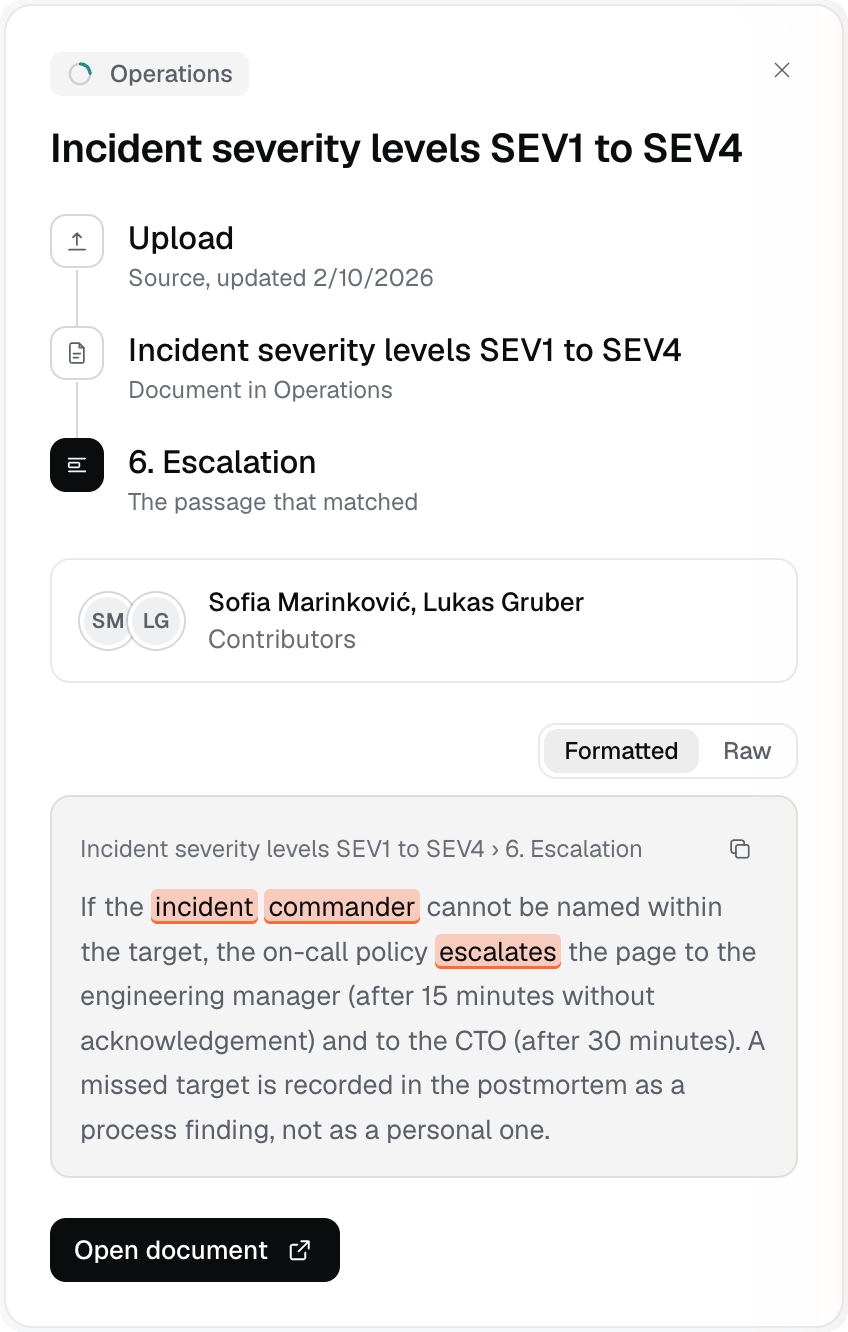
What you see when there are no results
If the filters exclude everything, you see “No results for this query.” Remove the filters or change the query.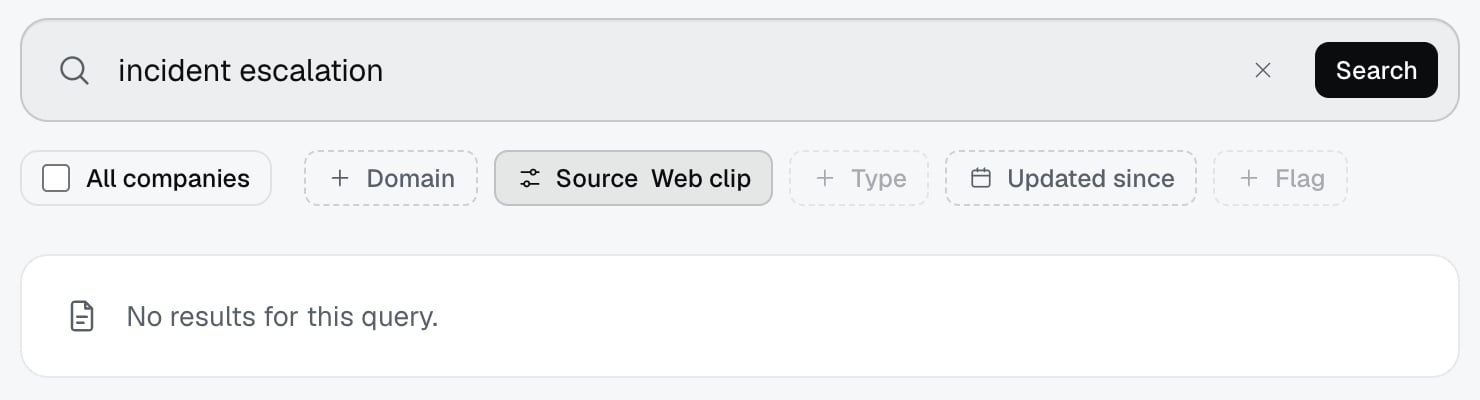
Limits
- One search returns at most 8 documents.
- Search always returns the closest matches, even for a nonsense query. A result at the top does not mean it fits: read the passage.
- The query needs at least 2 characters.
- Highlighting follows the words in your query, not every related word.
- Diacritics do not get in the way: a query without č, ć, š, ž and đ returns the same results. A Cyrillic query finds Latin documents and the other way round, and an English query finds Serbian documents.
- You only see the domains where you have a role. What you may not see appears neither in the results nor in the count. The same holds for a company admin: they also see only the domains where they have a role.
Troubleshooting
- “No results for this query.” Remove the filters or change the query. If that does not help, you may have no role in the domain that holds those documents.
- “The query needs at least 2 characters.” Type at least two characters.
- “The search failed.” Try again. If it keeps happening, tell your company admin.
- The results are not what you were looking for. Open the passage (eye icon) and check. Phrase the question the way the document does, or narrow it with the Domain filter.
- You know a document exists, but you do not see it. You have no role in its domain. Ask your company admin.