

Review your tokens
1
Open the Tokens section
Click My tokens and profile and switch to Tokens. For every token you see the name, the kind (Personal, Agent, Web clip, Connected app), the prefix (the first 8 characters, not a secret), the scopes, the narrowing, Created, Expires and Last used.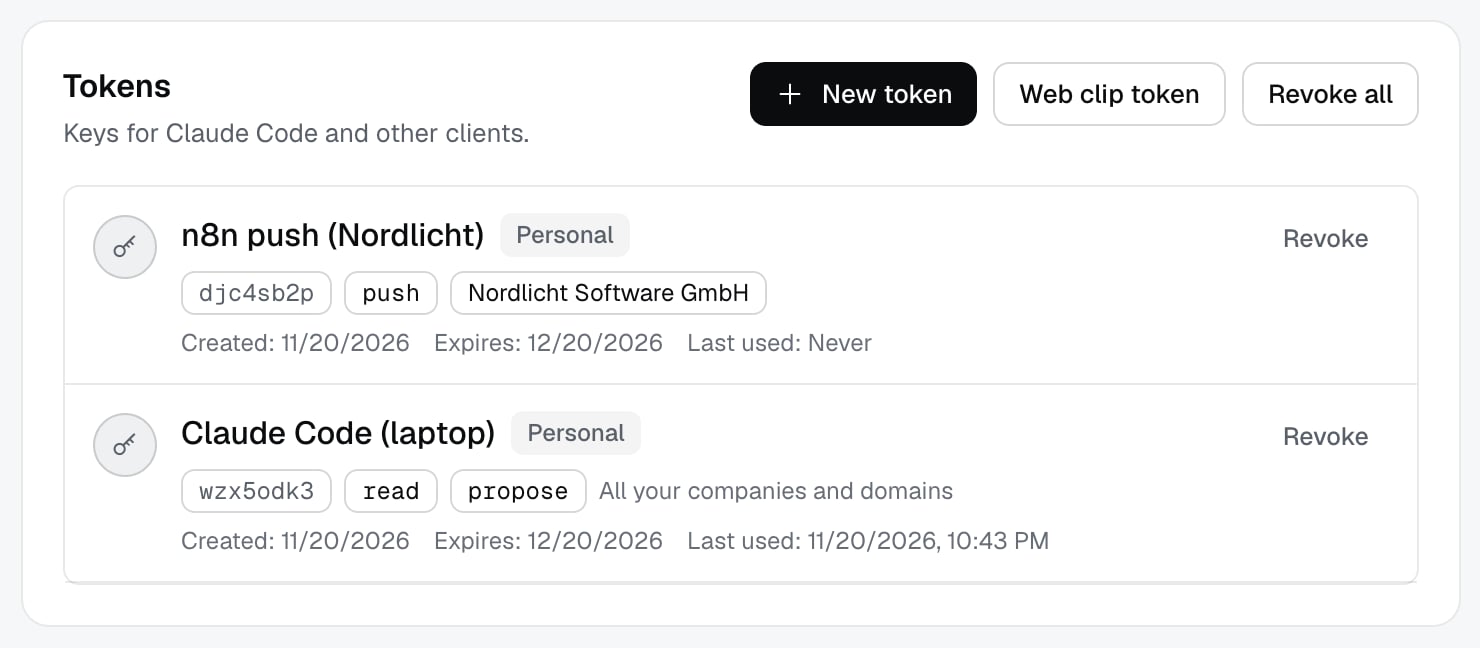
2
Revoke a token you do not use
Next to every token is Revoke. A revoked token stops working immediately (“The token was revoked.”). Above the list there is also Revoke all.
Create a new token
1
Click New token
Enter a Name (up to 80 characters) and Valid for (days, at most 90): from 1 to 90 days, 30 by default.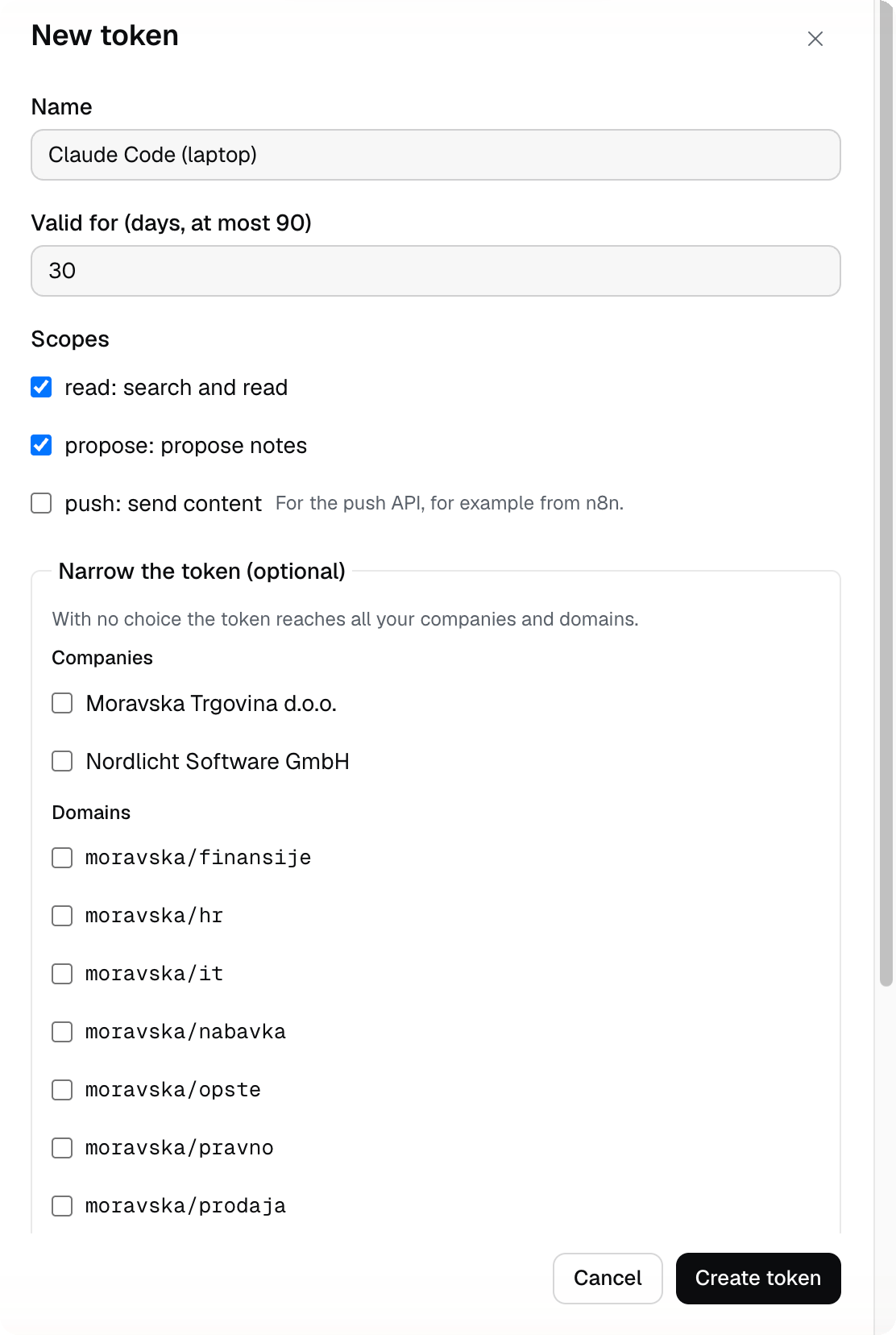
2
Choose the scopes
read is search and reading, propose is note proposals, push is sending content (for example from an automation). At least one is required. If you like, turn on Narrow the token (optional) and choose companies and domains. With no choice, the token is valid for all your companies and domains.3
Copy the token right away
Click Create token. Token created opens: “This is the only time you will see the token. Copy it now.” Click Copy, paste the token into the settings of your AI tool, then click Done.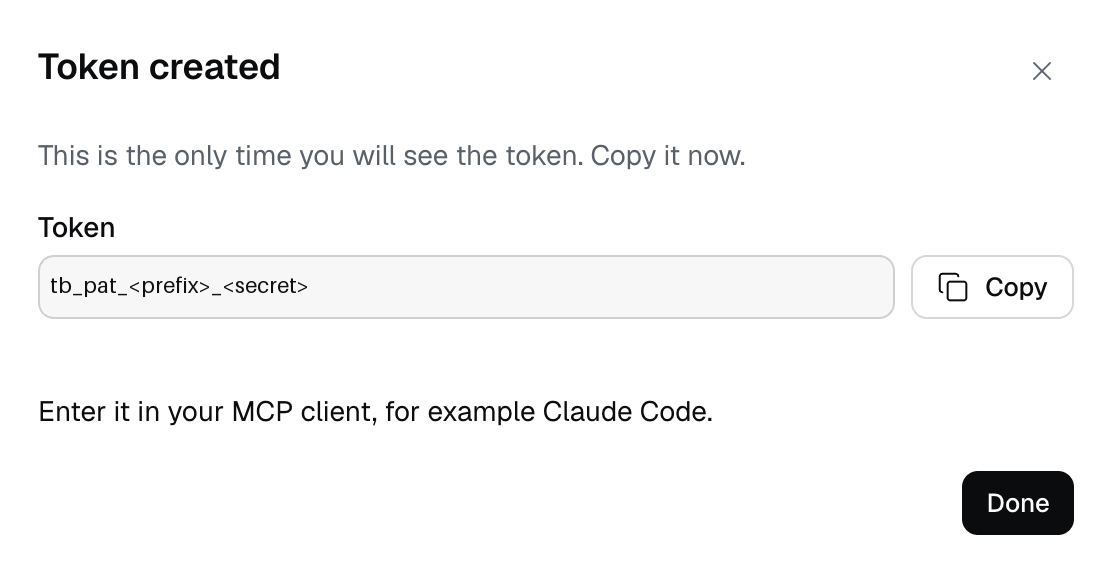
Linked accounts
In the Linked accounts section you see the accounts you sign in with: the provider, the account, the date it was linked and the last sign-ins. The Link a Google account button adds a second account. If you have only one, the link cannot be removed.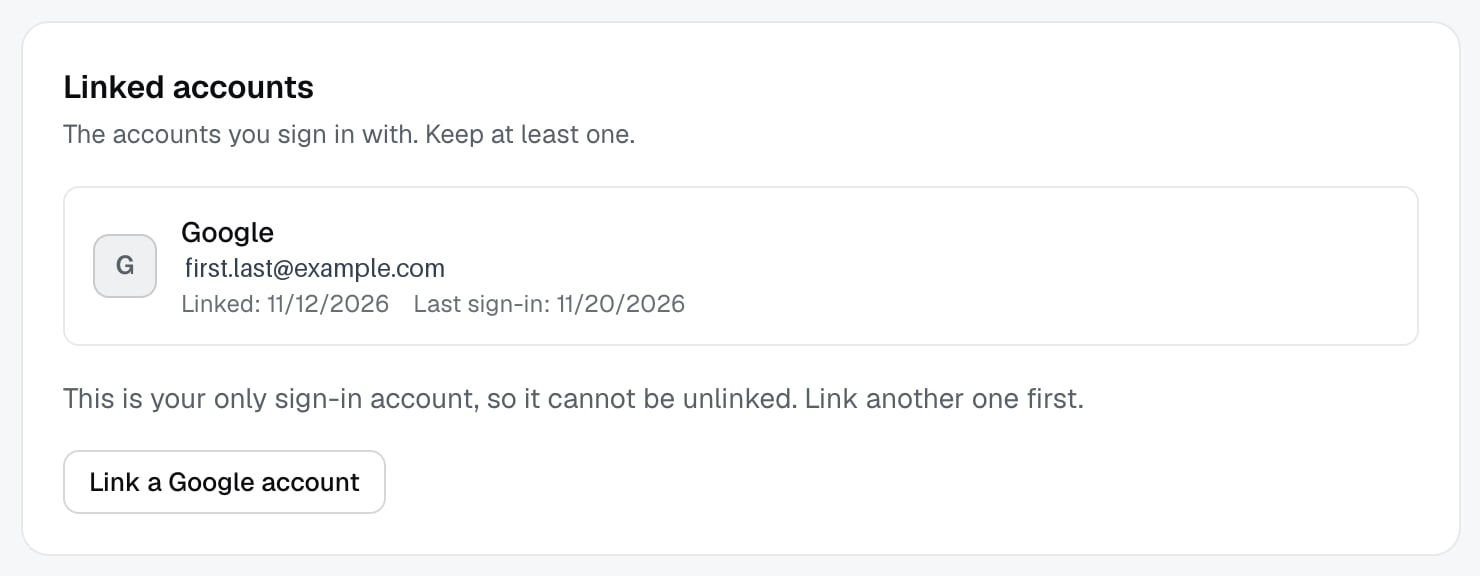
Access log
1
Open the Access log
Click Access log. The columns are Time, Person, Via, Action, Query, Results, Outcome and Duration. Via says where the request came from (Web, MCP, Preview, Web clip, Connected app and others). Outcome is OK, Denied or Error. The screenshot leaves out the Results and Duration columns and the last column, so it stays readable.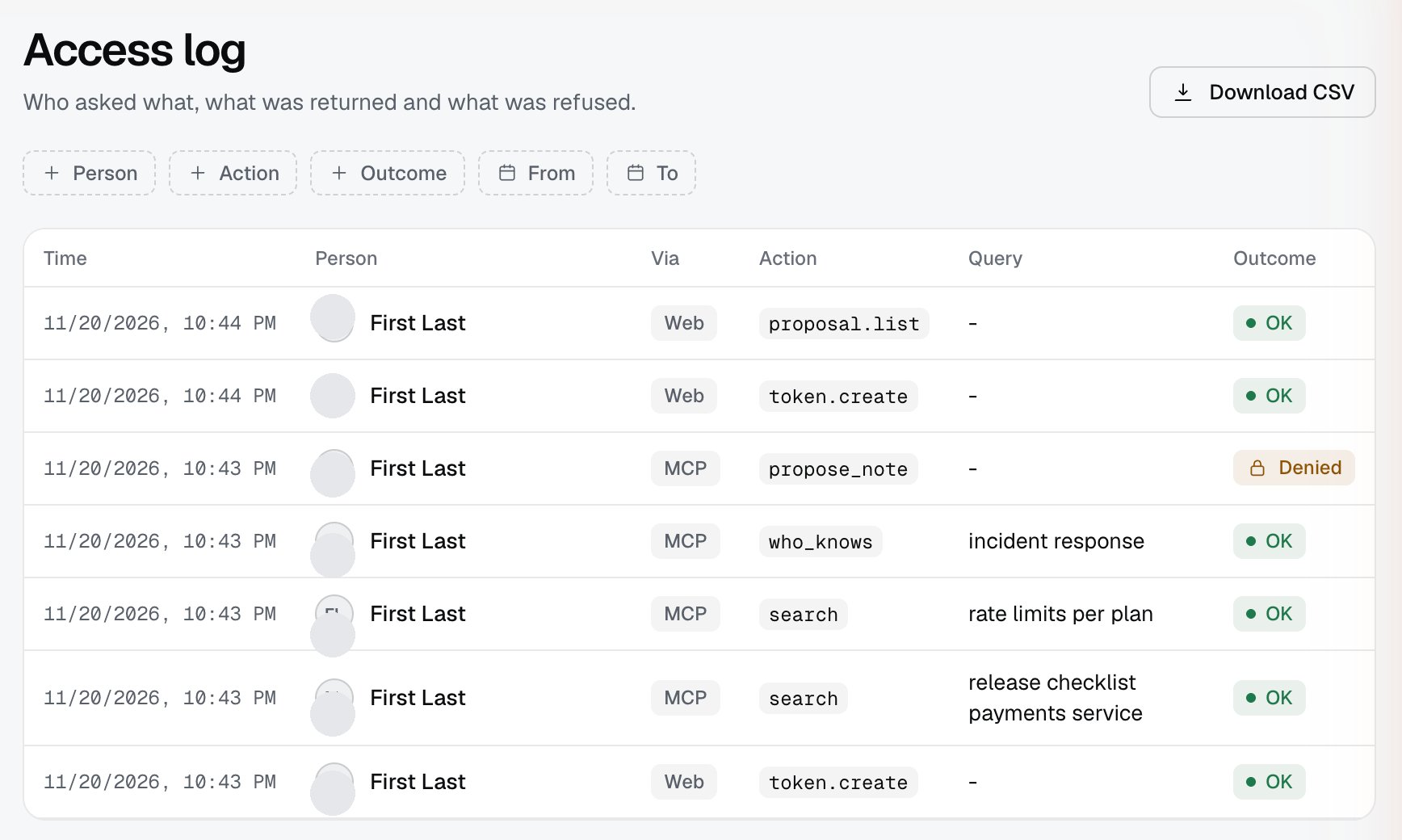
2
Narrow the entries
The filters are Person (company admin only), Action, Outcome, From and To. Download CSV downloads the entries with the same filters, and Load more brings the next page.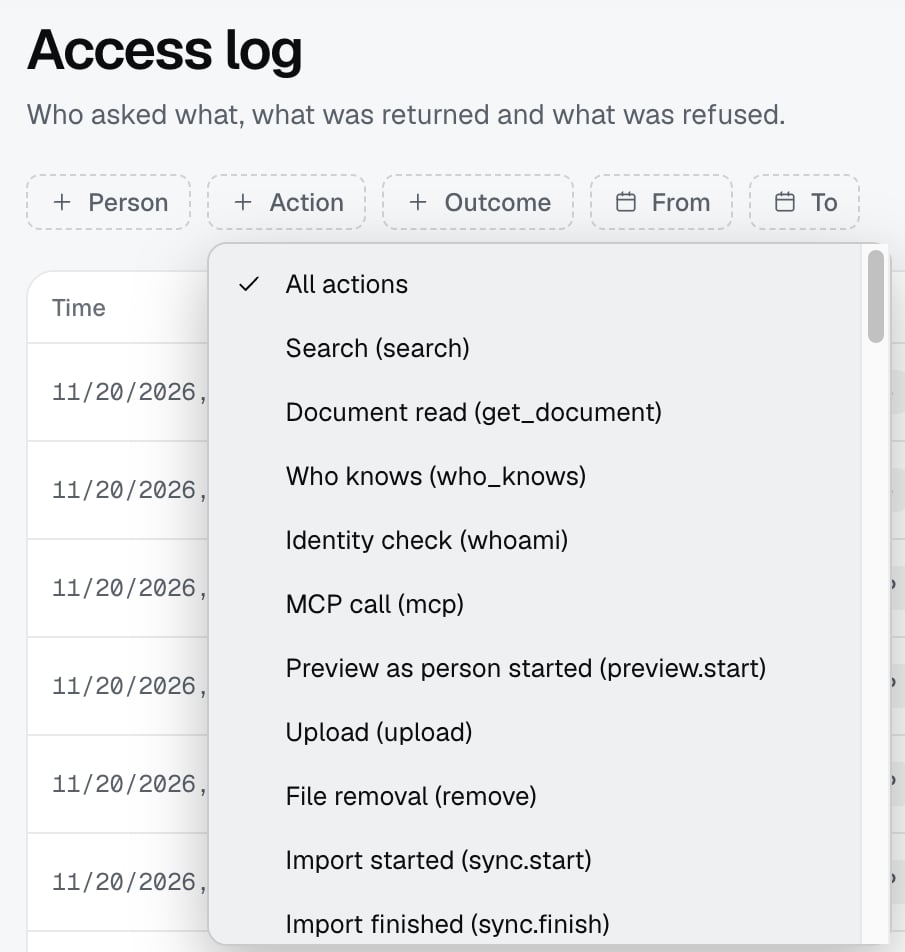
3
Open the details
The arrow at the end of a row opens Details. For a search it shows Documents in the answer (the titles the AI tool received), and for a refused call it shows Error code.
Limits
- At most 50 active tokens per person, and a validity of at most 90 days.
- A token belongs to a person, not to a company: the list is the same in all companies you belong to. The narrowing (companies and domains) limits what the token may do.
- A company admin sees the entries of everyone in the company. A member sees only their own entries (from the code).
- The Action column shows the technical name of the action (for example
search), and the Action filter offers names in the language of the screen. - Changing the language (SR or EN in the header) is saved in your profile and shows in the log as a profile change.
- A lost token cannot be shown again. Revoke it and create a new one.
Troubleshooting
- “Enter a name (up to 80 characters).”, “Enter a whole number of days from 1 to 90.” and “Choose at least one scope.” Fix the field in the New token dialog.
- “The narrowing is not allowed.” You chose a company or domain that is not available to you. Remove the narrowing or choose others.
- “You have 50 active tokens.” Revoke one you do not use.
- “Your profile could not be loaded.” Refresh the page.
- “The log did not load.” or “No entries.” Refresh, or widen the From and To filters.
- You cannot see a colleague’s entry in the log. That is expected if you are not a company admin.