

Browse the list
1
Open Documents
Click Documents in the left menu. The columns are Title, Domain, Source, Author, Updated, Reviewed and Flags. The newest come first by default. Click a column heading to sort by it (the screenshot is sorted by Title).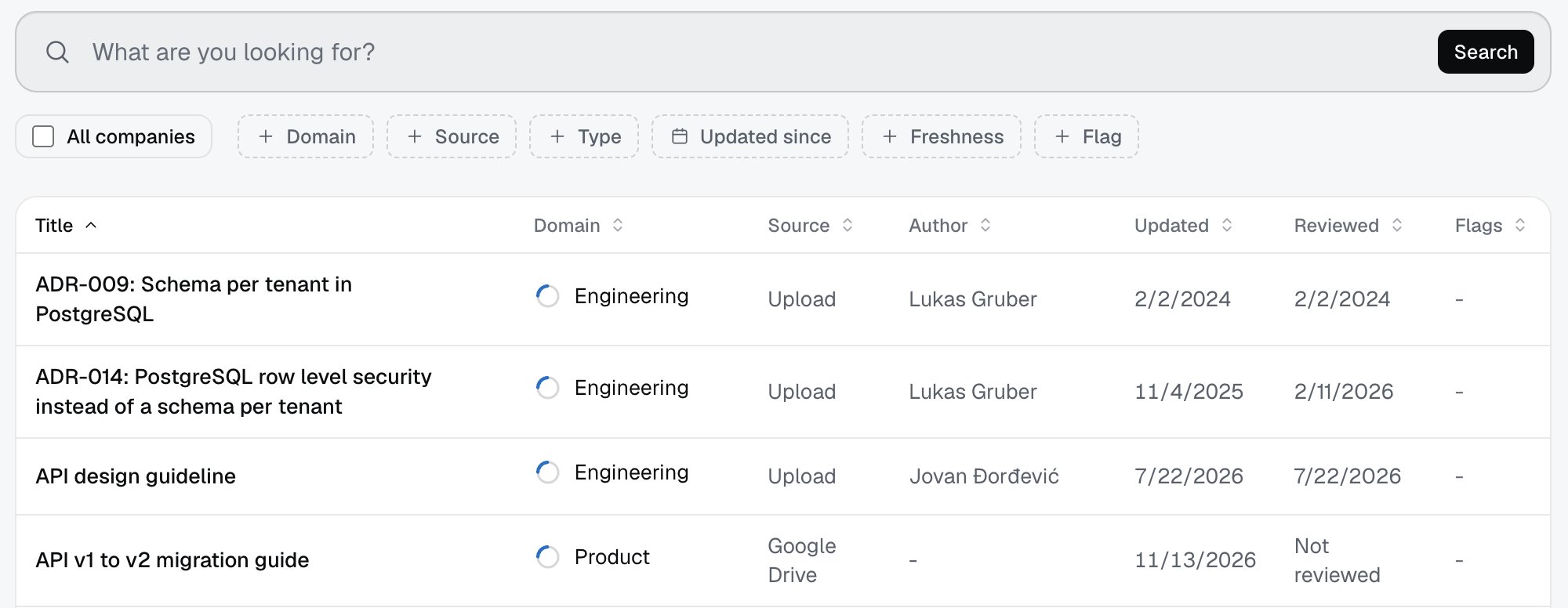
2
Sort and filter
Click a column name to sort the list. The filters above the list are the same as in search, plus Freshness (a document is stale when it is older than 180 days). The list loads 50 rows at a time, and Load more brings the rest.
3
Open a document
Click the title. You see the title, the domain, and Open the source (a link to the source, for example Google Drive; if the source has no link, it says “The source has no link.”). On the right are the details: Domain, Source, Type, Language, Author, Owner, Updated, Reviewed and Contributors.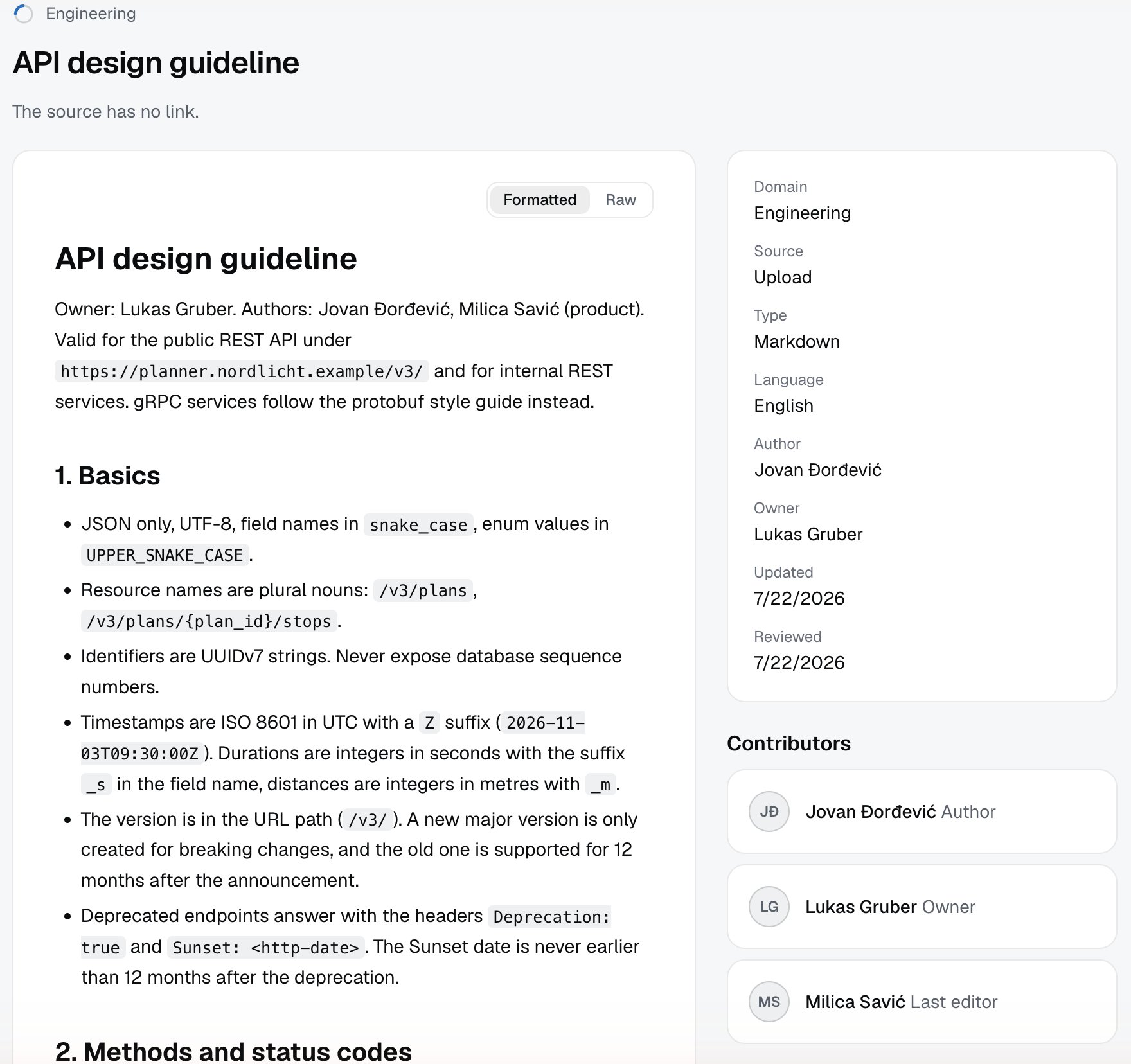
4
Choose how to read it
The Formatted switch shows headings, lists and tables. Raw shows the same text with its markup (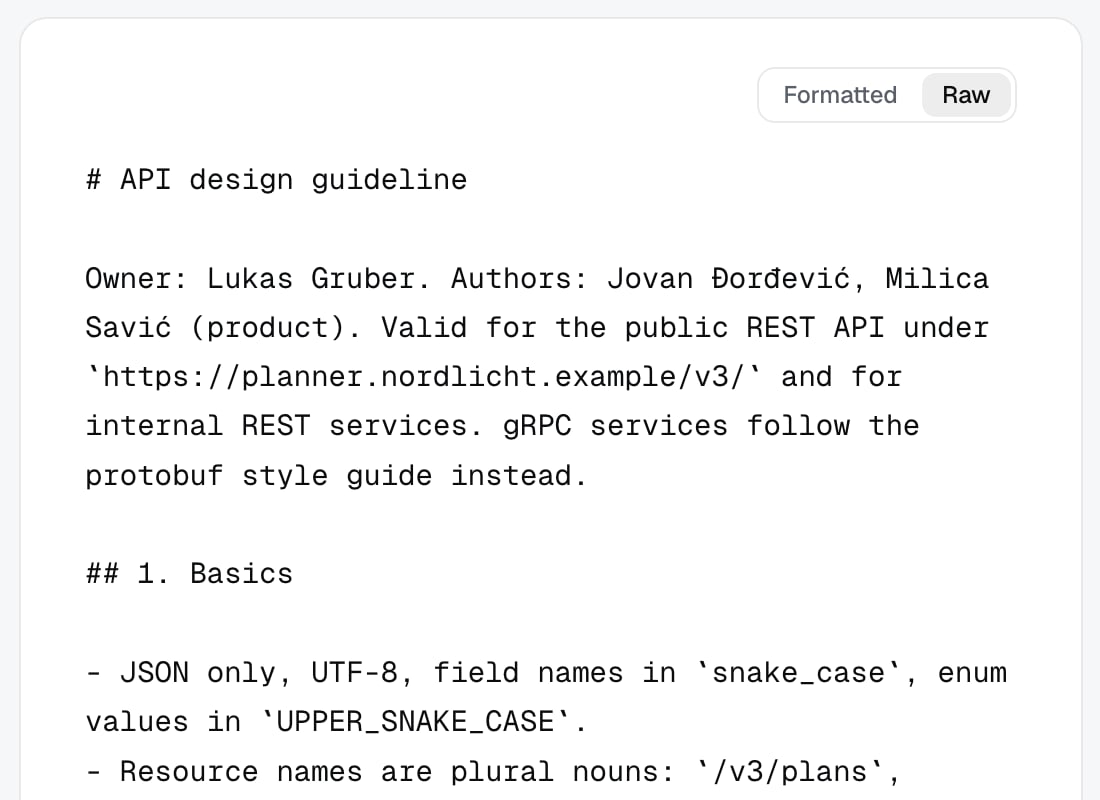
#, |), the way Izumi stores and searches it. Use Formatted for reading. Back to documents returns to the list.Limits
- You only see documents from the domains where you have a role. The same holds for a company admin. An admin can view the list as another member (Preview).
- The circle in front of the domain is only a color tag for the domain, not a loading indicator.
- Web clips carry the labels Web clip and Untrusted (web). Treat them as untrusted.
- A regular member does not see Sources, Import report and Companies and members.
Troubleshooting
- “Document not found.” The document was removed, or you have no access to its domain.
- “The document has no text.” The source is empty, or Izumi could not read the text. Your company admin can see this in Import report.
- “You have no role in any domain.” Ask your company admin to give you a role.
- A document you know exists is not in the list. You have no role in its domain, or a filter is on. Remove the filters.