

Who does what
- The Review queue is in the left menu for every member of the company.
- A company admin is not automatically an editor. Only an editor of a domain sees the proposals of that domain and decides on them.
Review and decide
1
Open the queue
Click Review queue. The number next to the item shows how many proposals wait for your decision. At the top you pick a status: Pending, Approved, Rejected, Expired, Withdrawn or All. Extra filters are Domain and My proposals. The columns are Title, Domain, Proposer, Created, Expires in and Status.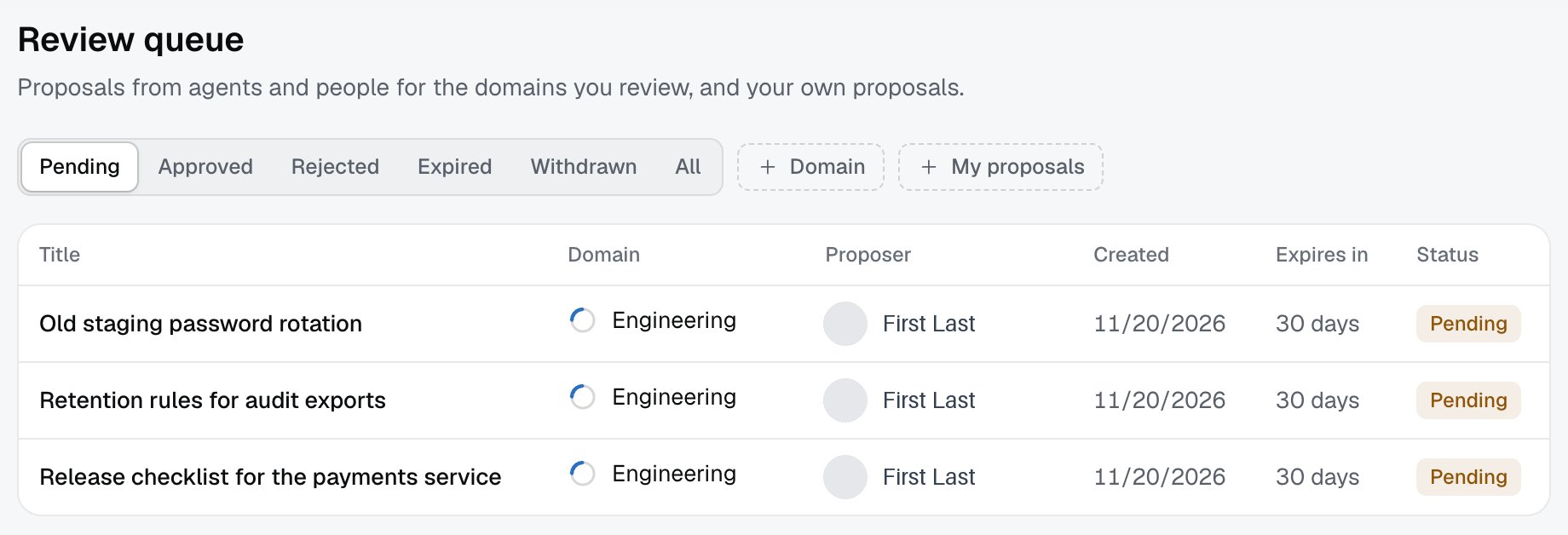
2
Read the proposal
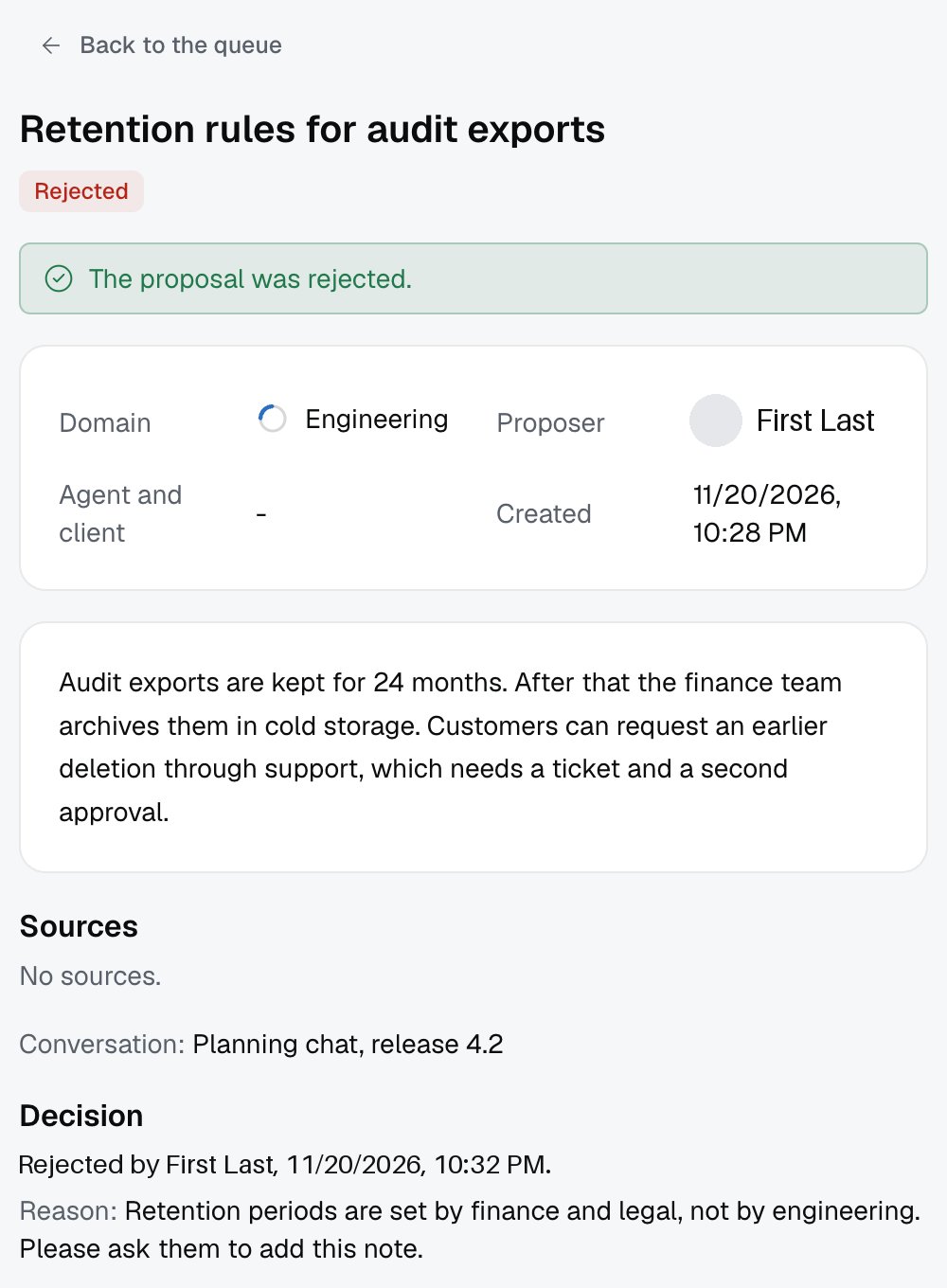
Click a row. You see the status and the deadline (“Expires in: 30 days”), then the details Domain, Proposer, Agent and client and Created. Below are Proposal text, Sources and Conversation.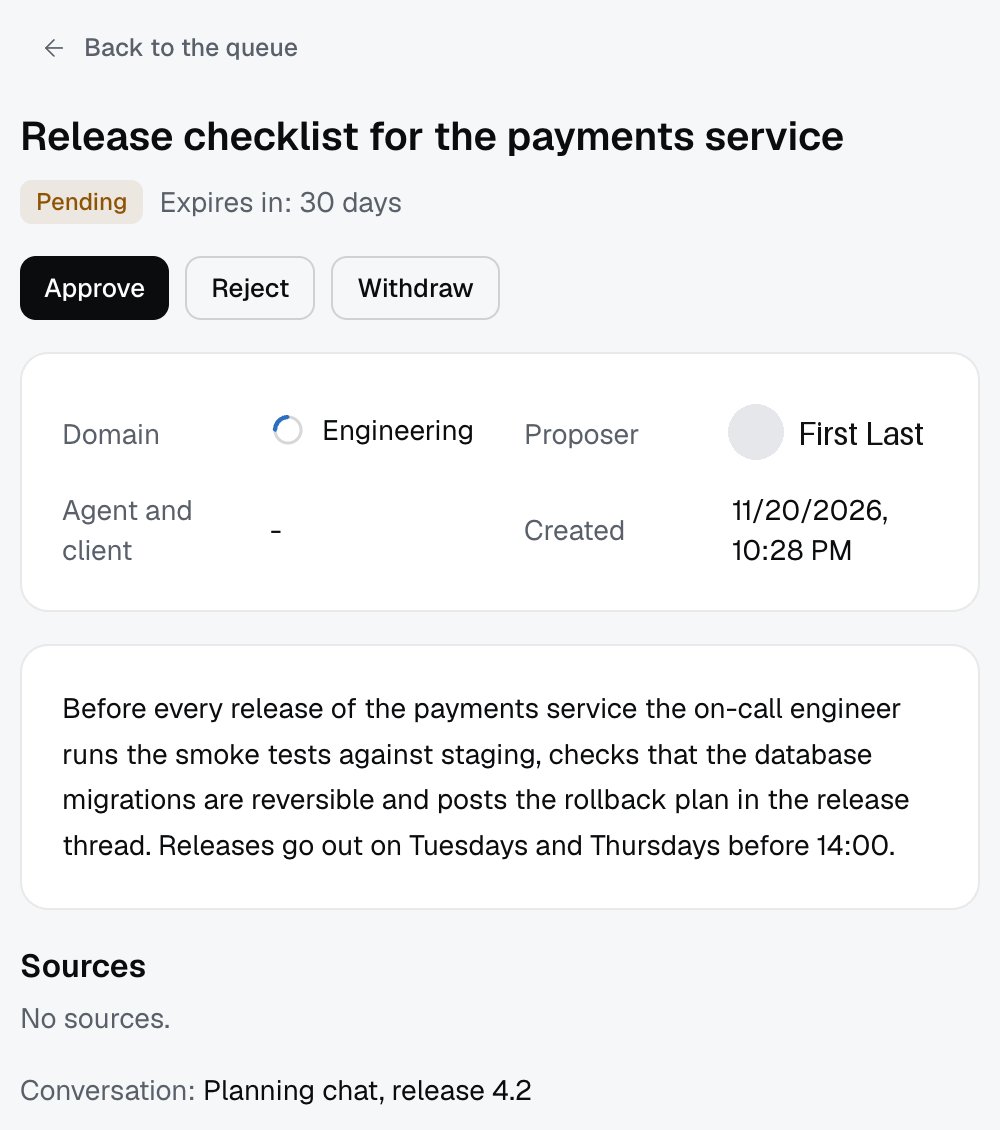
3
Approve
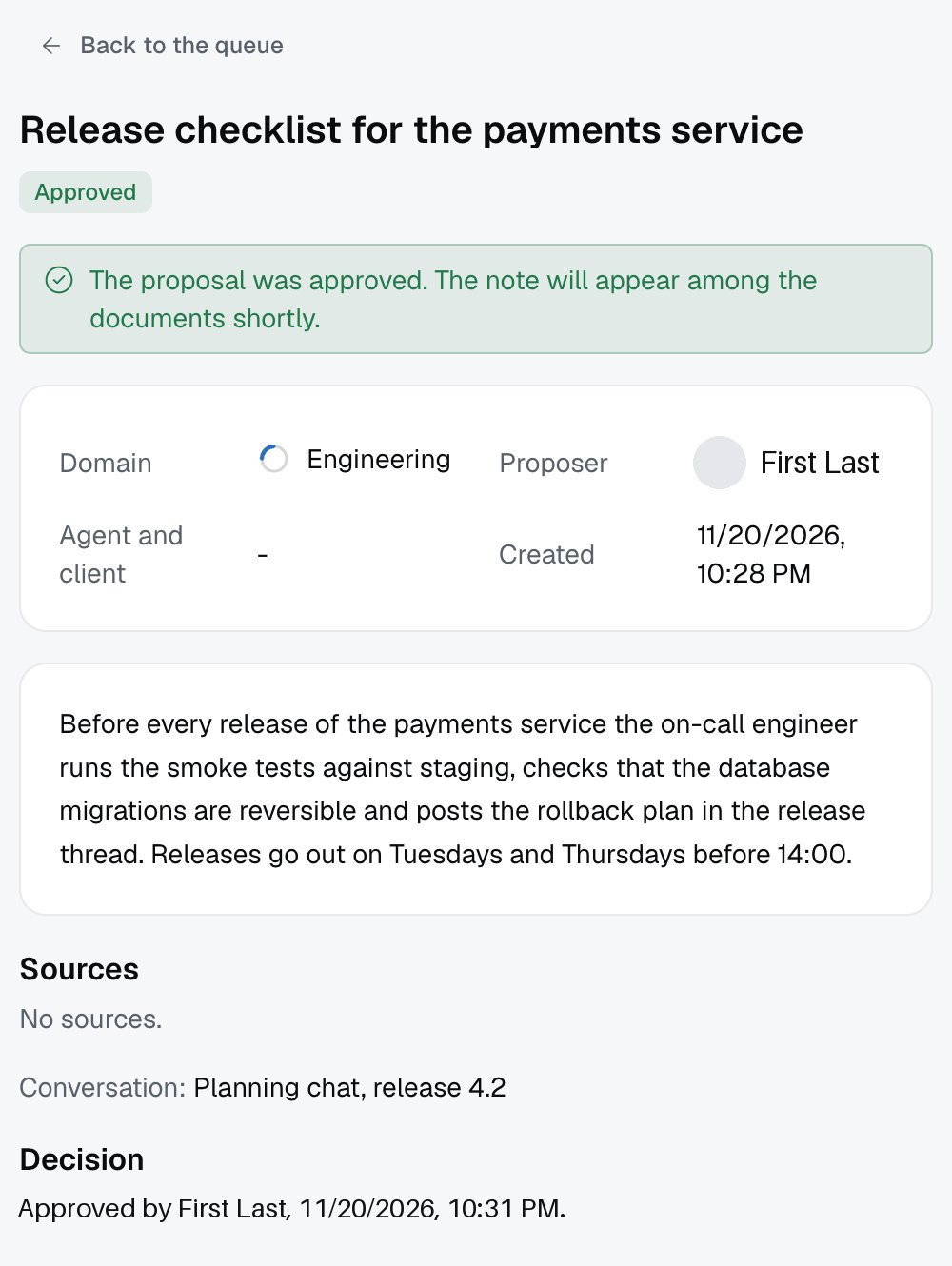
Click Approve. The dialog has the fields Title (3 to 200 characters) and Text (Markdown) (20 to 20000 characters). The proposal gets the status Approved, and the note shortly appears in Documents with the Note label. The proposer is the author.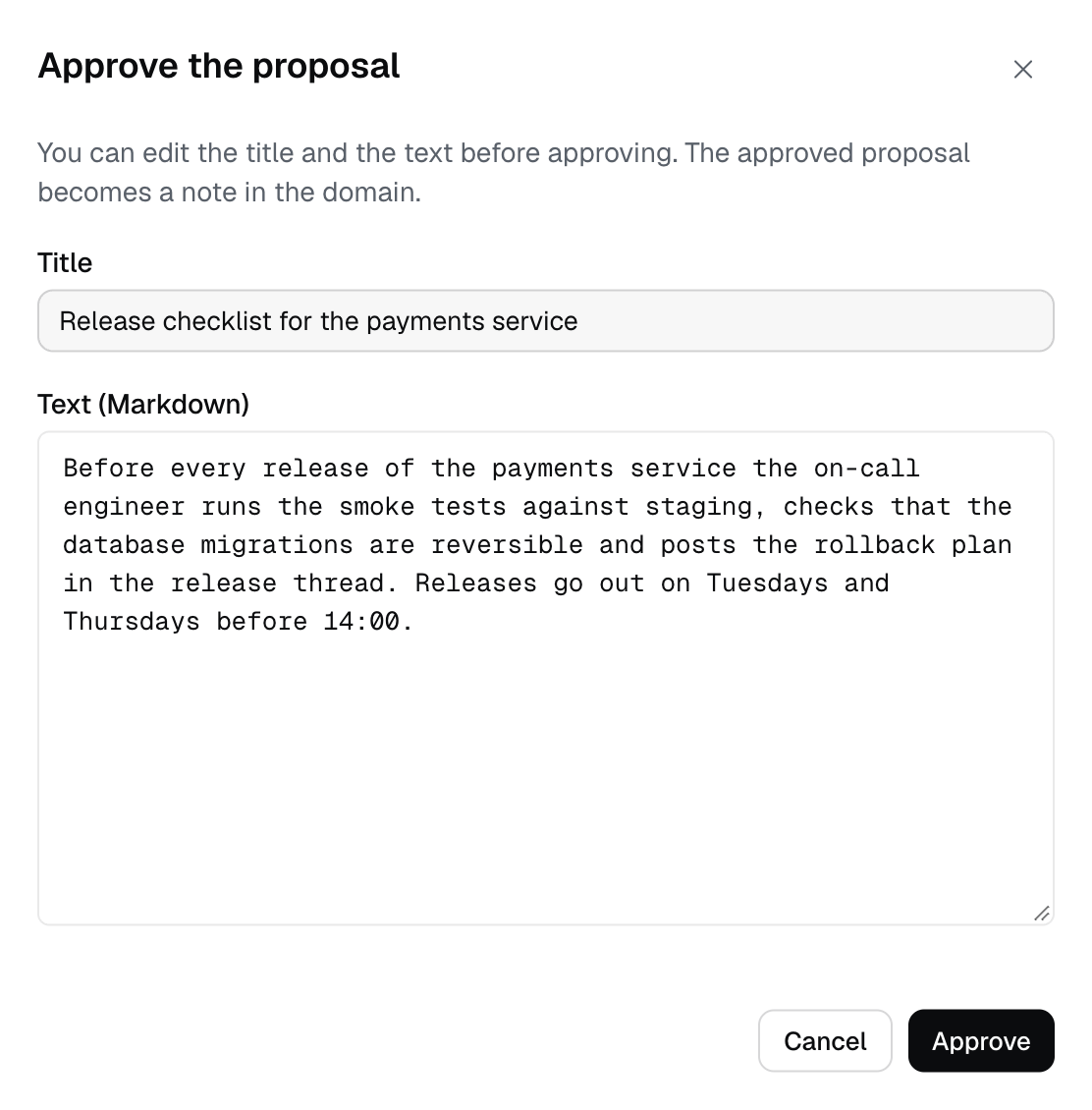
4
Or reject
Click Reject. A reason is required (up to 1000 characters), and the proposer sees it. No note is created and it never appears in search.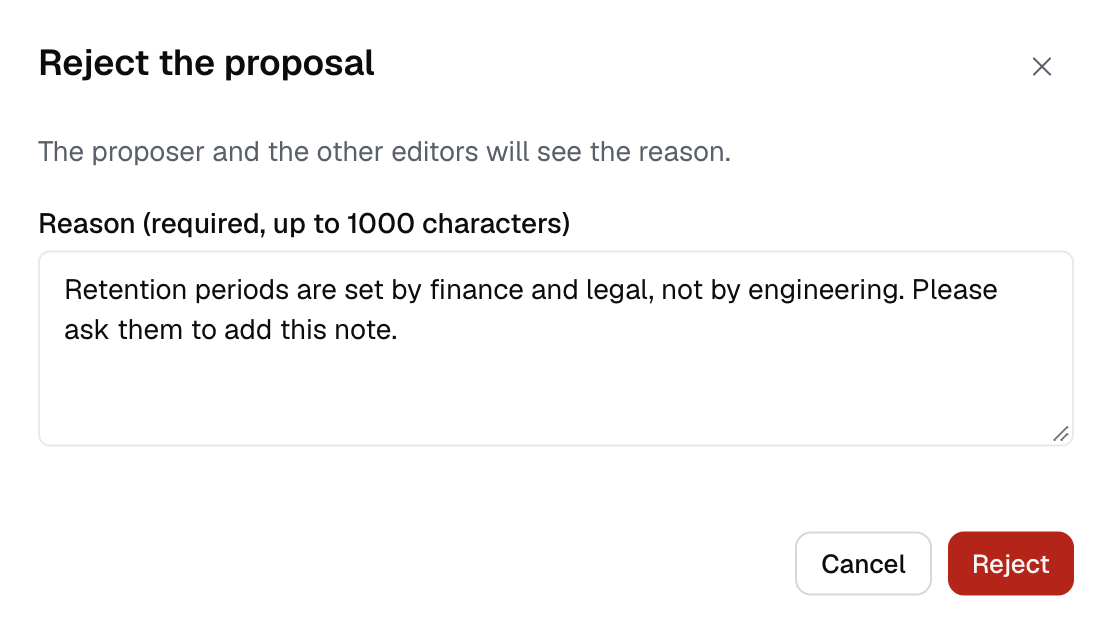
Withdraw your own proposal
1
Click Withdraw
Open your proposal and click Withdraw. The dialog says the proposal will be marked as withdrawn and nobody can approve it any more.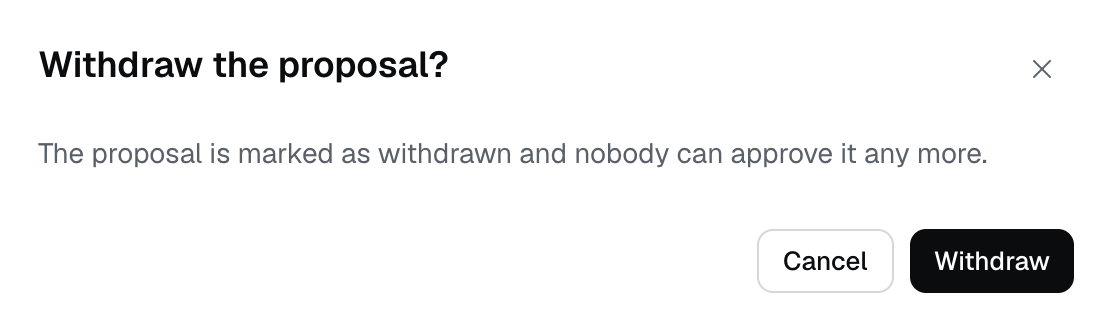
2
Follow your proposals
Turn on My proposals and choose All. You see your proposals with their statuses and the reason for a rejection.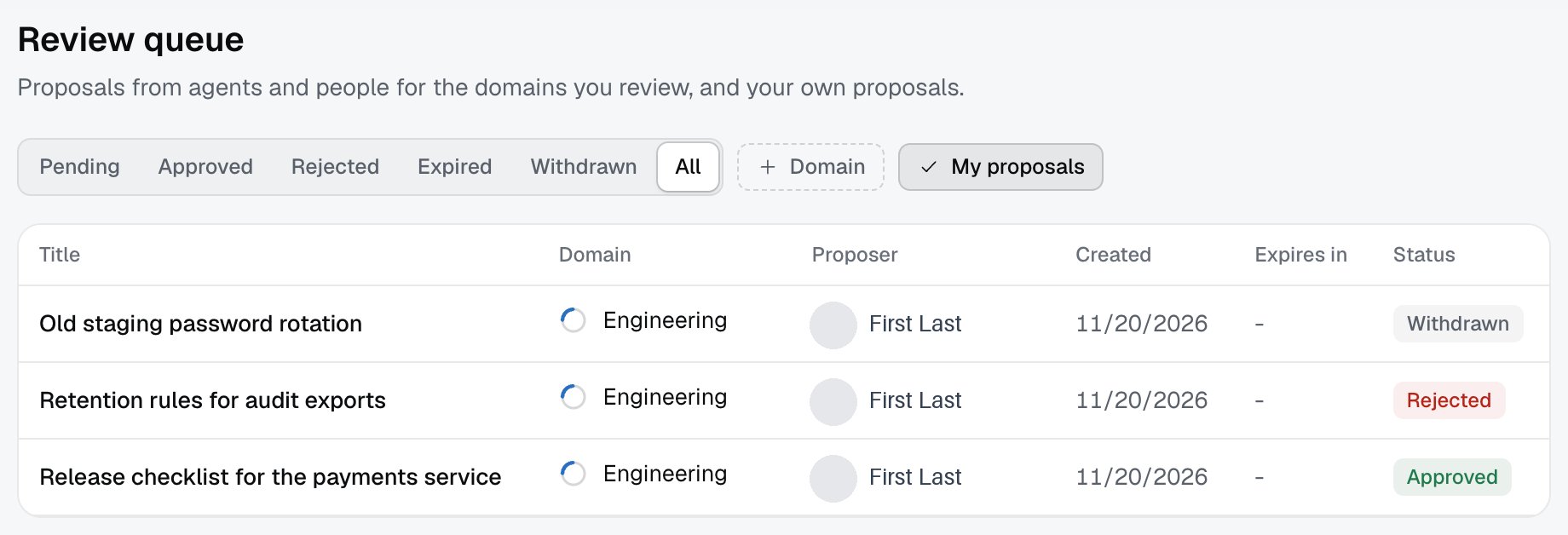
When a proposal is not available
If you open a proposal you may not see, or one that does not exist, you see Proposal not found: “It may have been decided, withdrawn or expired, or it is not yours to see.” This is normal behavior, not an error.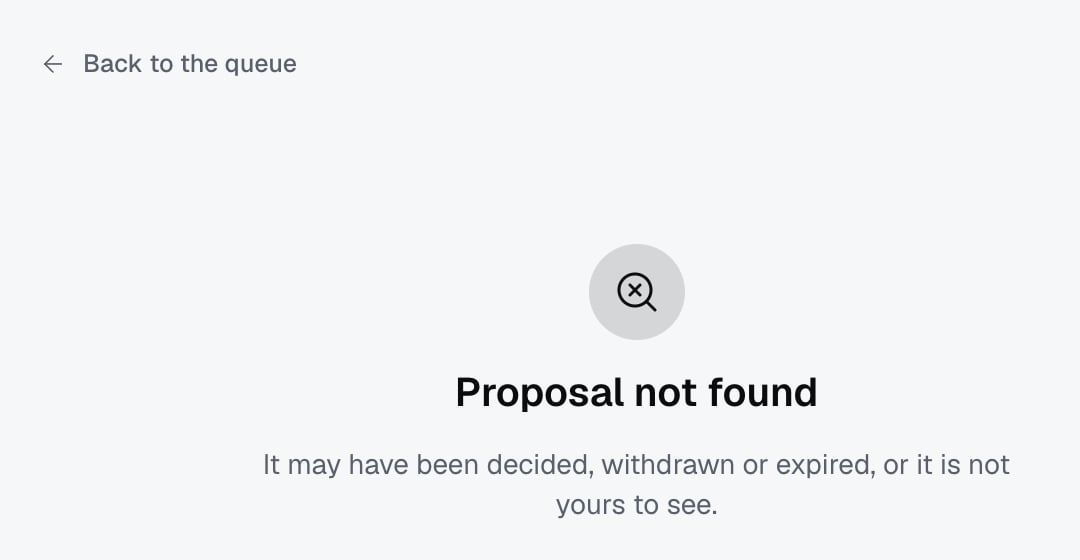
Limits
- An approved proposal is searchable within a few minutes. A rejected or withdrawn proposal is never searchable.
- A proposal is valid for 30 days, and the deadline shows in the Expires in column.
- Izumi does not send email about proposals. An editor sees only the number next to Review queue, and the proposer sees the outcome when they open their proposal.
- An approved note cannot be deleted from the Documents list or from the document page.
Troubleshooting
- “There are no proposals for your domains.” Nothing is pending, or you are not an editor of any domain and have no proposals of your own. Try All and My proposals.
- “No proposal matches the filters.” Remove the Domain filter or choose All.
- Proposal not found. The proposal was decided, withdrawn or expired, or it is not yours to review. Open it from the list with the status All, or ask the proposer.
- “This proposal can no longer be decided.” Someone already decided it, or the proposer withdrew it while your dialog was open. Refresh the list.
- “The title needs 3 to 200 characters.” and “The text needs 20 to 20000 characters.” Fix the fields in the Approve the proposal dialog.
- “Enter a reason.” In the Reject the proposal dialog a reason is required.
- “The proposals could not be loaded.” Refresh the page. If it keeps happening, tell your company admin.
- An approved note is not found right away. The message says “shortly”. Wait a few minutes and search by words from the text.