

- OAuth: only the server address, sign-in in the browser. The connection lasts 90 days.
- Personal token: the header
Authorization: Bearer <token>. You choose the expiry and the scopes, at most 90 days.
What you get
- You ask Izumi from Claude Code, in the terminal or in an editor. Claude Code calls Izumi tools and answers with a source.
- You see only what you may see in Izumi, in all your companies. You can narrow a personal token to some companies and domains.
Before you start
- An Izumi account, invited with the address you sign in with.
- Claude Code (the command
claude). Version 2.1.287 was checked. - The server address:
https://izumi.akiaconsulting.com/mcp.
Path 1: OAuth
1
Add the server
In the terminal:
claude mcp list shows Needs authentication next to the server.2
Sign in through /mcp
Run
claude, enter /mcp and choose izumi (marked “needs authentication”). Choose sign-in (Authenticate). Claude Code says “A browser window will open for authentication” and prints an address you can copy if the browser does not open.3
Approve the connection in Izumi
The browser opens Izumi (sign-in if you are not signed in), then the page “Connect Claude Code to Izumi”.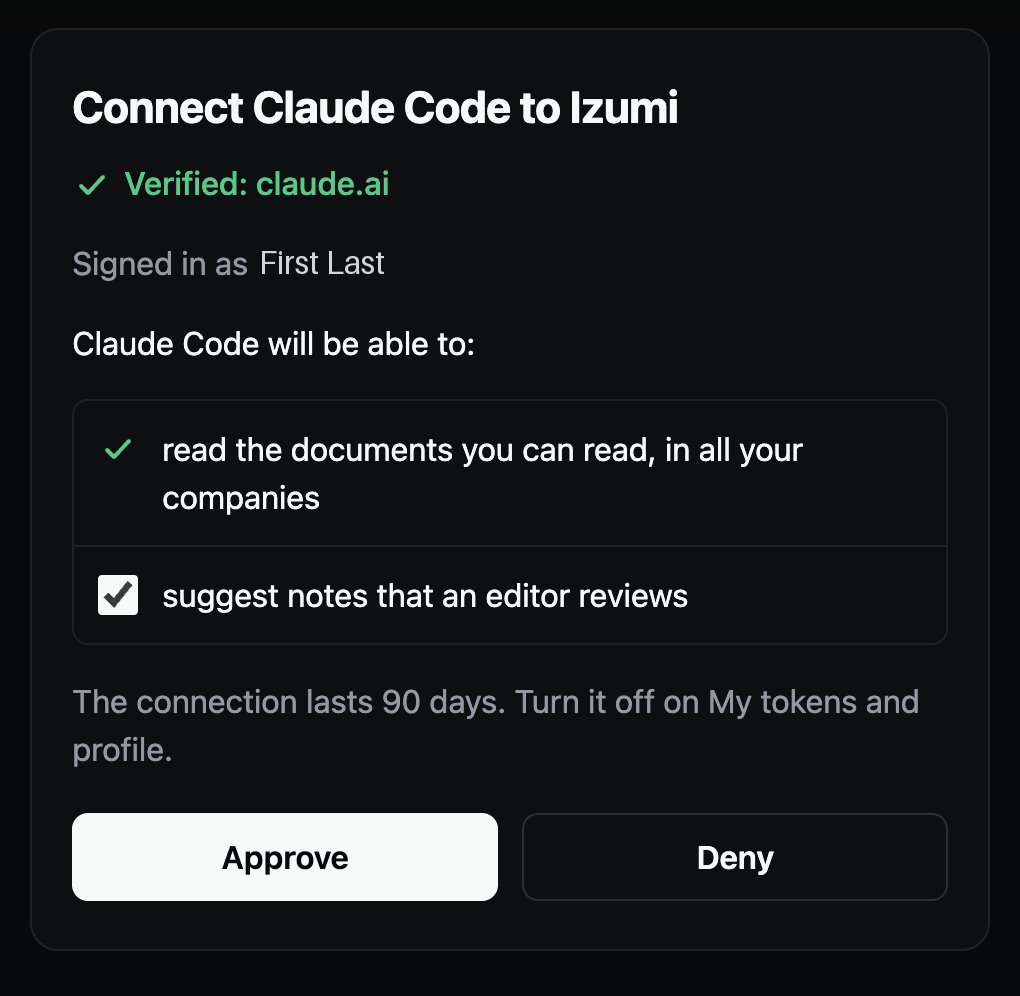
- It says Verified: claude.ai. Claude Code uses a published identity, so there is no warning that the client is not verified.
- The permission read the documents you can read, in all your companies is always on. suggest notes that an editor reviews is on by default.
- Click Approve once.
4
Close the tab
The browser goes back to an address on your computer (
localhost, the port changes) and says Authentication successful, “You can close this tab and return to Claude Code.” Close the tab.5
Check the connection
In the terminal
/mcp says “Authentication successful. Connected to izumi.” claude mcp list shows Connected. Ask: “Call the tool whoami from the server izumi.” The answer has token.kind oauth, name Claude Code, expires_at (90 days from approval), scopes (read, propose) and companies and domains with your role.6
Revoke the connection when you no longer need it
In Izumi open My tokens and profile. The connection is a row Claude Code marked Connected app, with the address
claude.ai, a prefix and scopes. Click Revoke.After that claude mcp list shows Needs authentication, and a tool call fails with a message that sign-in is needed. For a new connection repeat step 2.7
Remove the server from Claude Code
Path 2: personal token
1
Make a token
In Izumi open My tokens and profile, section Tokens, button New token.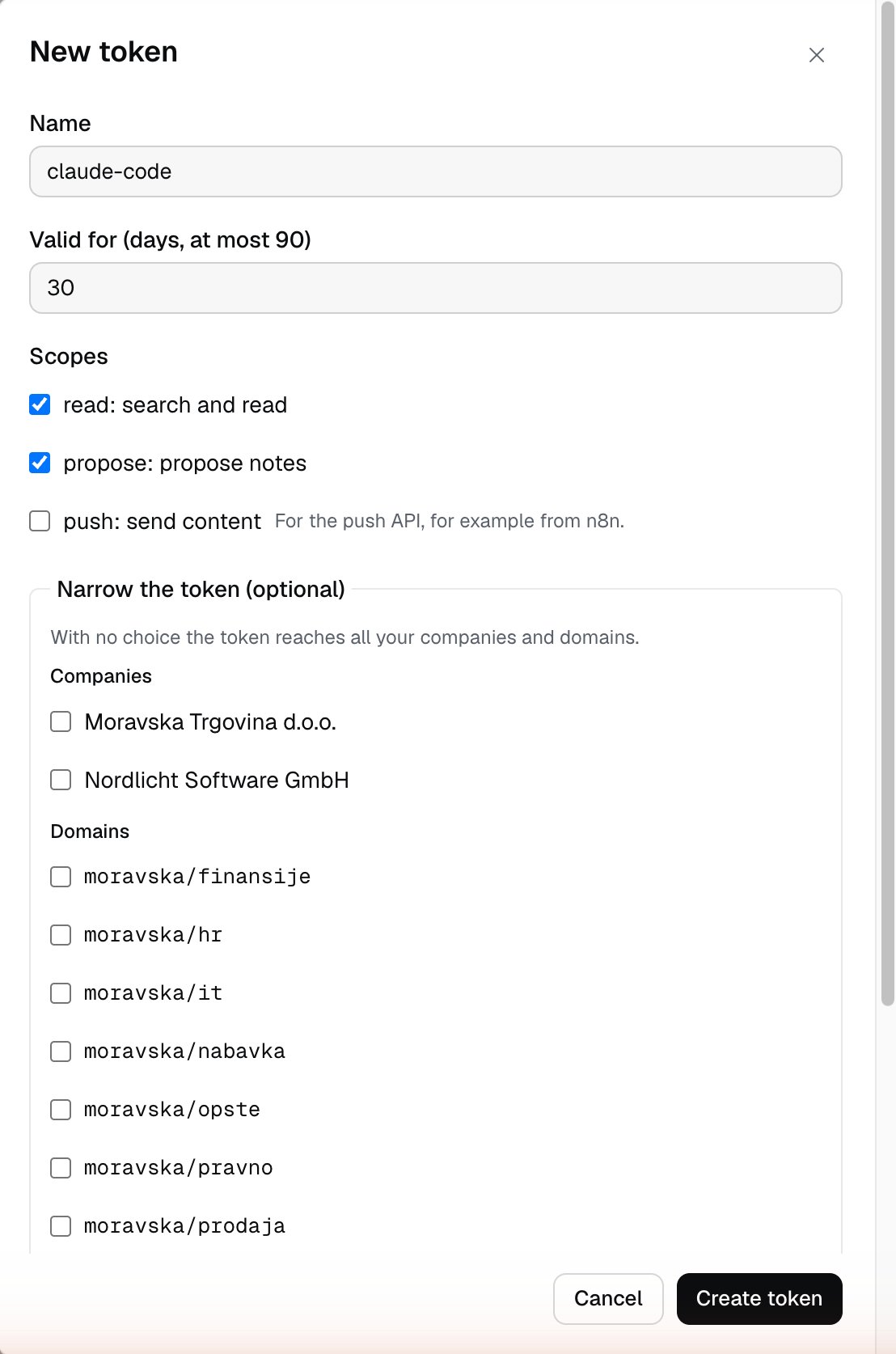
2
Fill in the New token window
- Name: for example
claude-code. - Valid for (days, at most 90): the default is 30.
- Scopes: read: search and read is on. propose: propose notes is on by default. Untick it if Claude Code should only read. push: send content is for the push API and is not needed here.
- Narrow the token (optional): with no choice the token covers all your companies and domains. You can pick companies and domains.
- Click Create token.
3
Save the token
Izumi shows the token once: “This is the only time you will see the token. Copy it now.” Click Copy and store it somewhere safe. Do not send it in a chat and do not put it in a repository.
4
Add the server
In the terminal (replace Claude Code answers “Added HTTP MCP server izumi … to user config” and prints the header with the value
<token>):[REDACTED].--scope userapplies in all folders. Without it the server applies only to the folder you are in.- Do not use
--scope projectwith a token: according to the Claude Code documentation it writes.mcp.jsoninto the repository (not checked).
5
Check the connection
kind pat, name, prefix, expires_at, scopes) and companies and domains with your role. For a token with the scope read, scopes shows only read.6
Remove the server and revoke the token
What a token without the propose scope does
propose_notewith invalid input (a title shorter than 3 characters) returnsinvalid_input, “The title field is missing or invalid.” The input is checked before the scope.propose_notewith a valid title and text returnsforbidden_scope, “The token does not have the scope for this call.” No proposal is made.
Limits
- The token is shown only once, when you make it. A lost token cannot be recovered: revoke it and make a new one.
- The token expires at the expiry you chose (at most 90 days). An OAuth connection lasts 90 days from approval.
- A token with the scope
readcannot propose notes.propose_notereturnsforbidden_scope. - Calls are limited to 60 per minute (
rate_limited). - Whether Claude Code asks for permission before a tool call depends on its own settings and is not part of connecting to Izumi.
Troubleshooting
claude mcp listdoes not show Connected: check the address (/mcpat the end), that the token has not expired or been revoked, and that the header is exactlyAuthorization: Bearer <token>.forbidden_scope: the connection lacks the needed scope (for examplepropose). Make a new token with that scope, or connect with OAuth with suggest notes that an editor reviews ticked.invalid_input: the tool input does not satisfy the schema (for example a title that is too short). The message names the field.- A revoked OAuth connection: the call fails, and
claude mcp listshows Needs authentication. Sign in again through/mcp. - A revoked token: the call no longer works. Make a new token. What
claude mcp listthen shows was not checked.