

What you get
- You ask Izumi from a Claude chat. Claude calls Izumi tools and answers with a source.
- You see only what you may see in Izumi, in all your companies.
- Optional: Claude can propose a note. The note goes to the Review queue, and an editor of the domain approves or rejects it.
- The connection lasts 90 days. You revoke it yourself on My tokens and profile.
Before you start
- An Izumi account, invited with the address you sign in with.
- A Claude account. The plan Pro was checked.
- The server address:
https://izumi.akiaconsulting.com/mcp.
Connect in claude.ai
The claude.ai menus change often. On the day of the check (2026-11-20) connectors are under Plugins, with the filter Connectors. This place used to be called Customize.
1
Add a custom connector
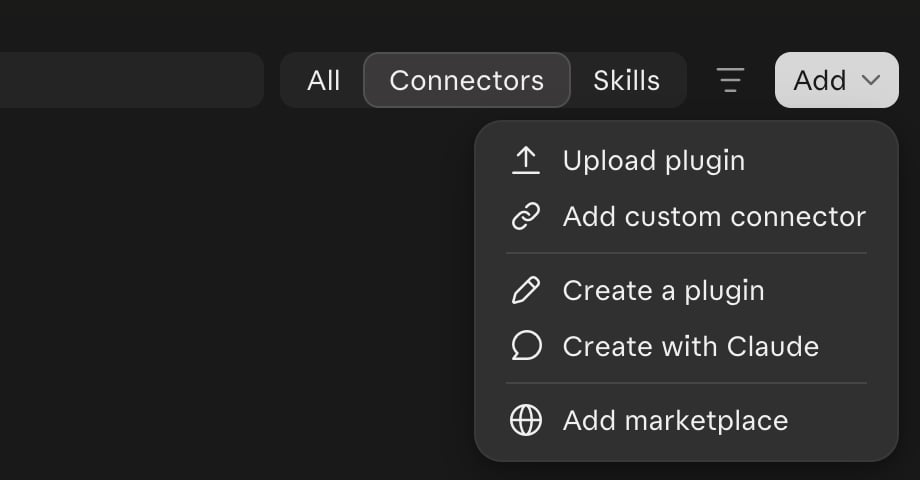
In the left menu click Plugins, then choose the filter Connectors above the list. At the top right click Add, then Add custom connector.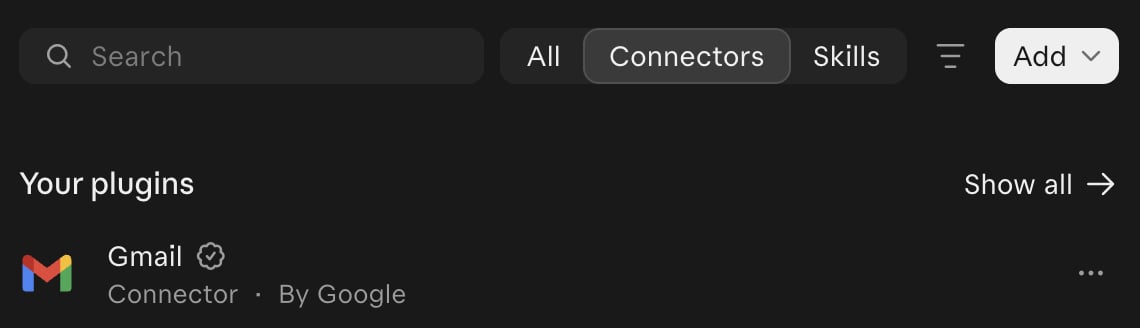
2
Enter the name and the address
In the Add custom connector window enter Name 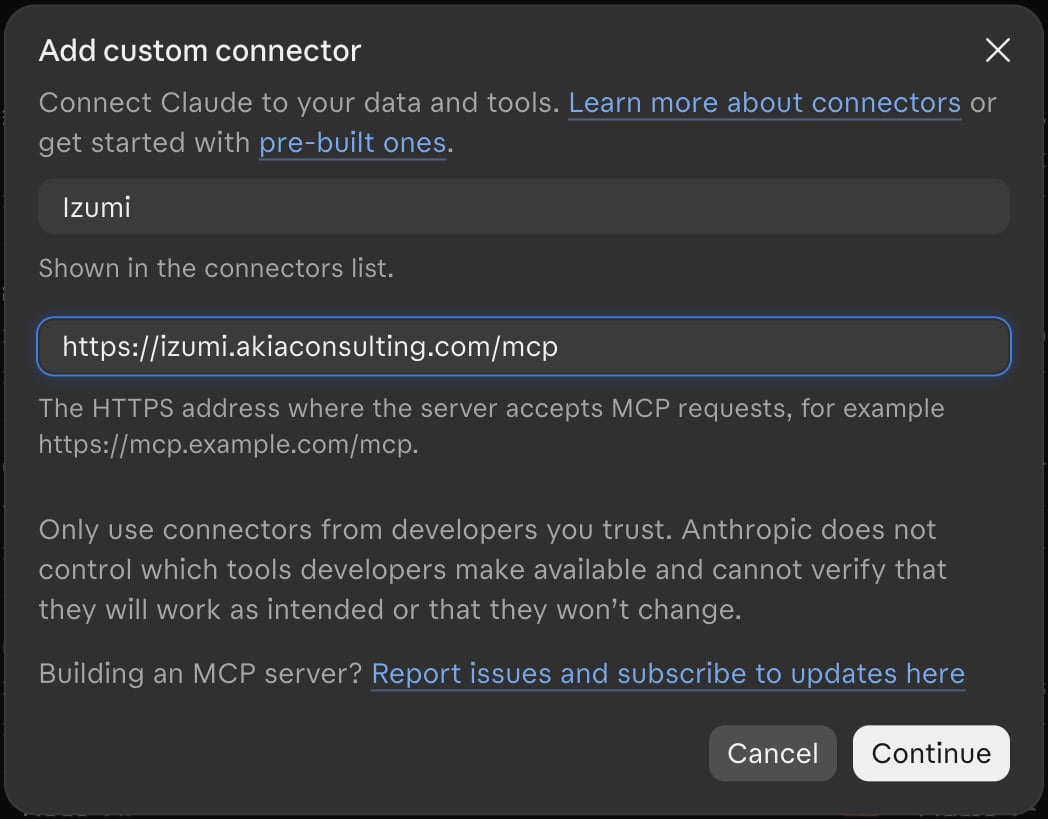
Izumi and MCP server URL https://izumi.akiaconsulting.com/mcp, then click Continue.3
Keep the detected settings
Claude checks the server and detects the settings by itself. Leave them as they are: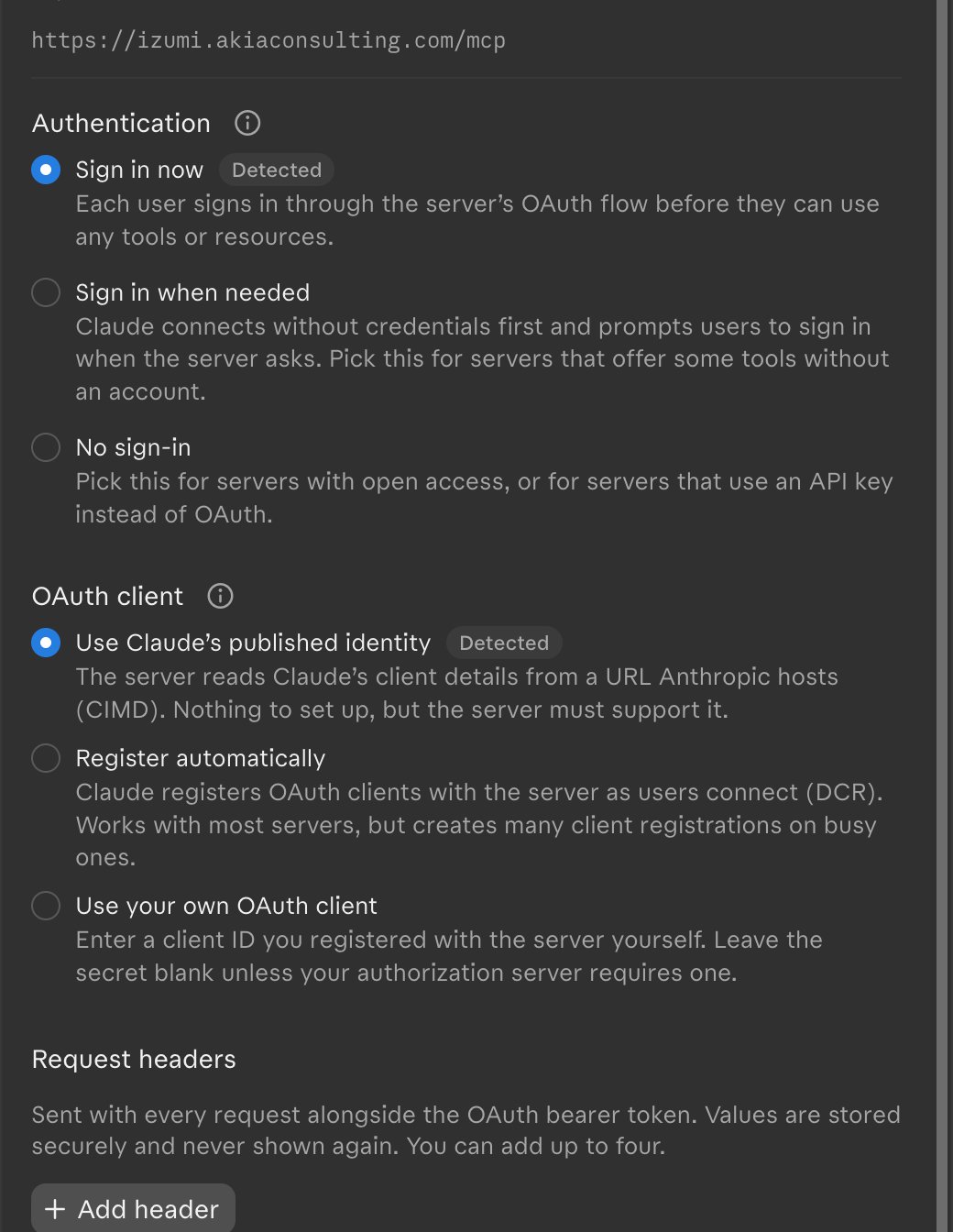
- Authentication: Sign in now (label Detected).
- OAuth client: Use Claude’s published identity (label Detected).
- Request headers and Advanced stay empty.
4
Approve the connection in Izumi
Izumi opens. If you are not signed in, sign in first. Then the page “Connect Claude to Izumi” appears.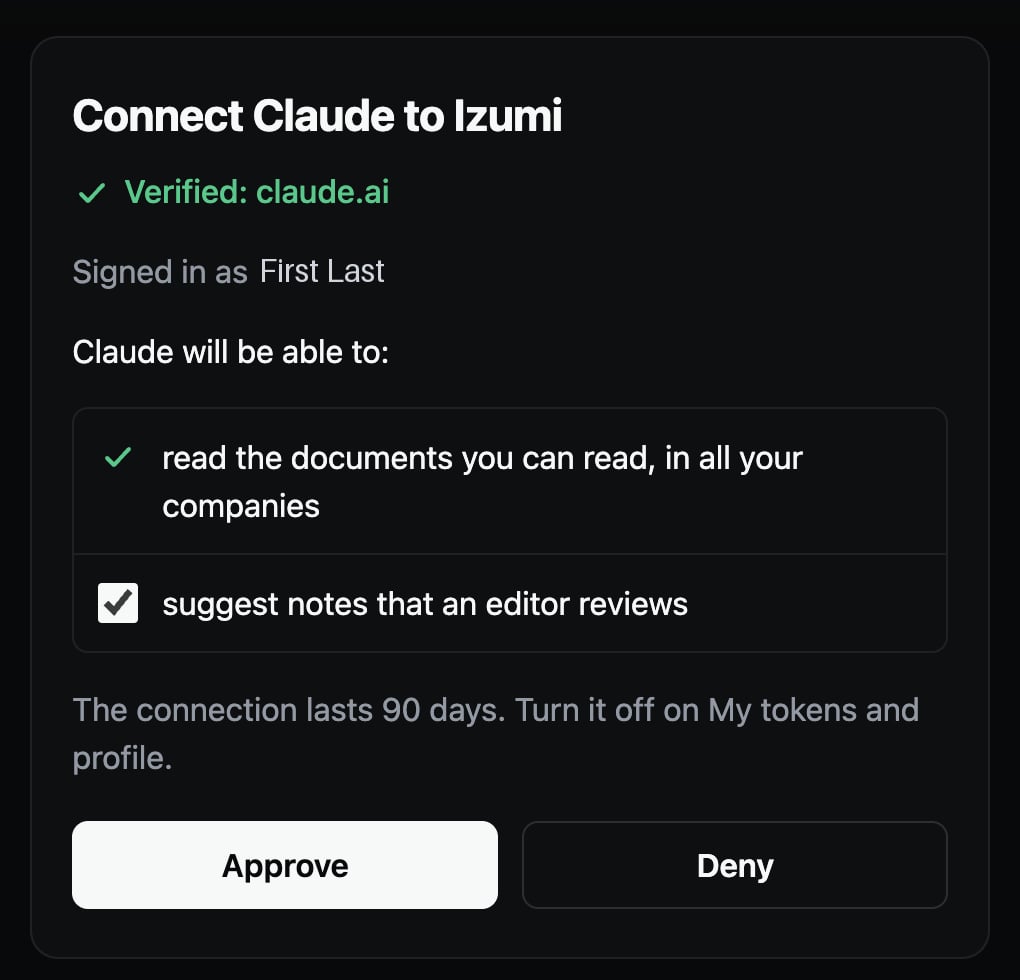
- Check that it says Verified: claude.ai. If it says anything else, do not approve.
- The first permission, read the documents you can read, in all your companies, is always on.
- The second permission, suggest notes that an editor reviews, is ticked by default. Untick it if Claude should not propose notes.
- Click Approve.
5
Look at the tool permissions
You return to claude.ai with the message Connected to Izumi. Open the connector (Plugins, Izumi) and the Permissions tab (next to Overview). It lists the tools in two groups: Read-only tools (Get document, Search, Who knows, Whoami) and Write/delete tools (Propose note). Each group has a setting, Needs approval by default, and each tool has three choices: allow, ask for approval, block.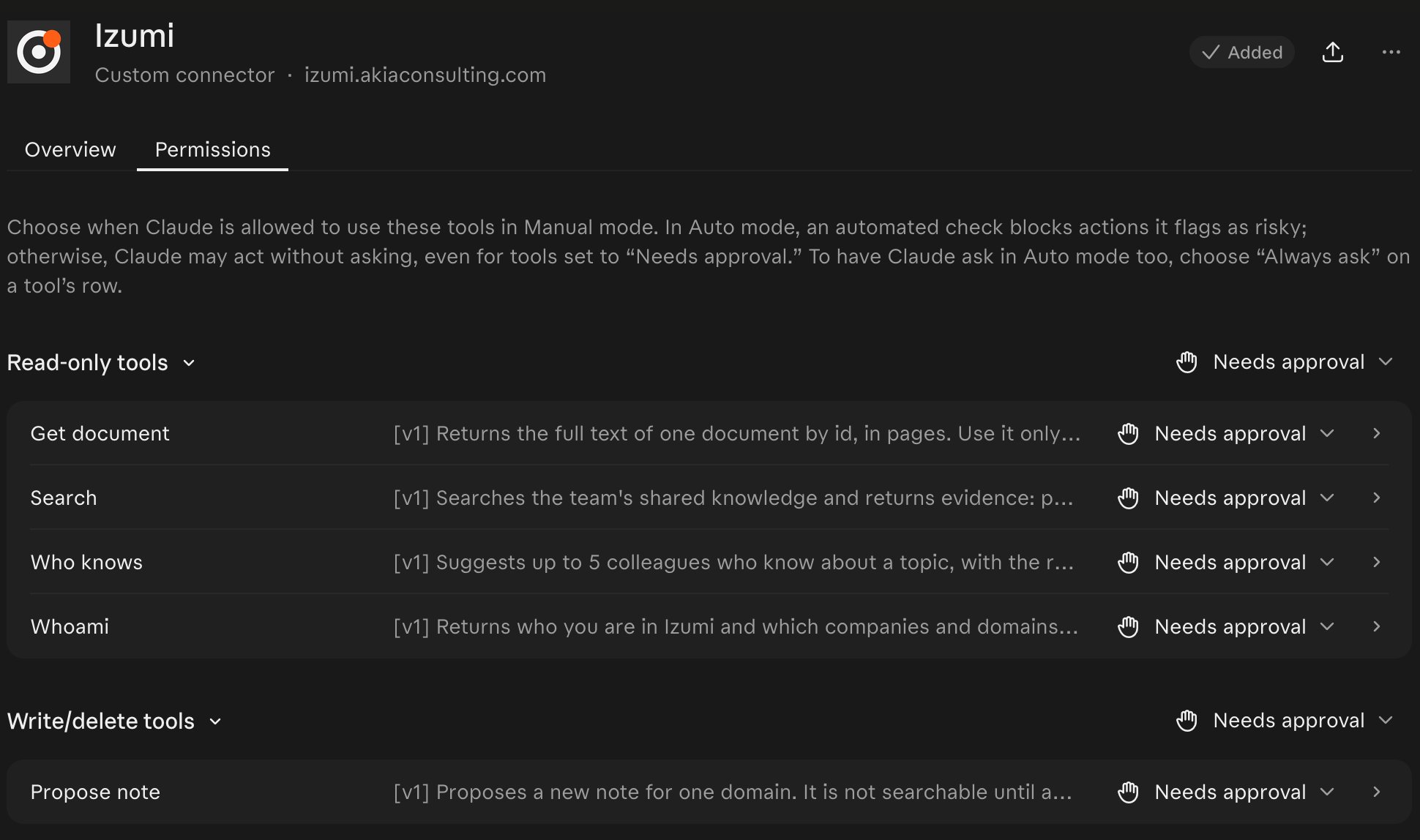
6
Turn Izumi on in a chat
Open a new chat. Click + in the message box, then Plugins. A list with switches opens. Izumi is already on. If it is not, turn it on.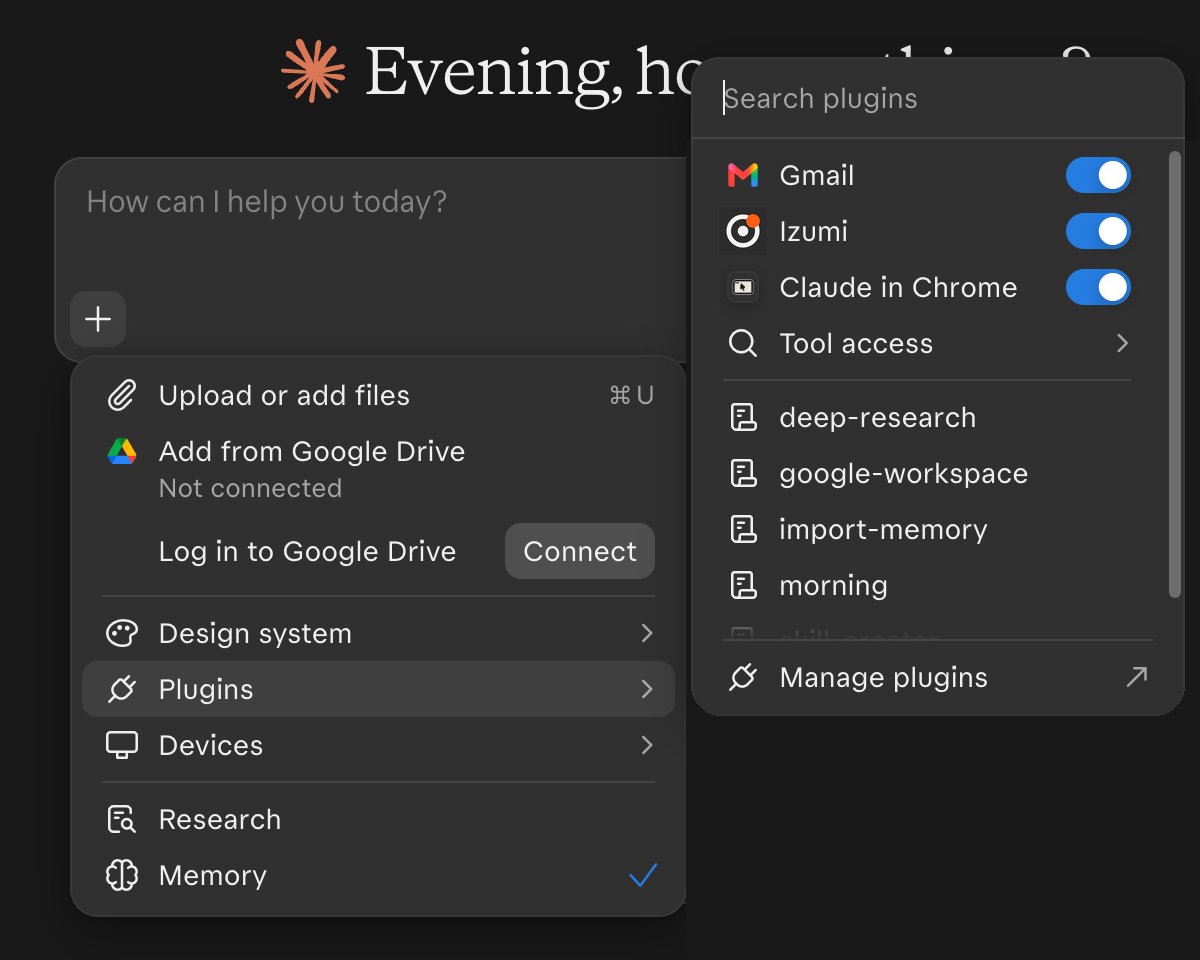
7
Check the connection
Ask: “Call the Izumi tool whoami and tell me who I am.” Before every call Claude asks “Claude wants to use Whoami from Izumi” with Decline, Always allow and Allow once. Choose Allow once. The answer returns your name, companies, the domains where you are an editor, the scopes (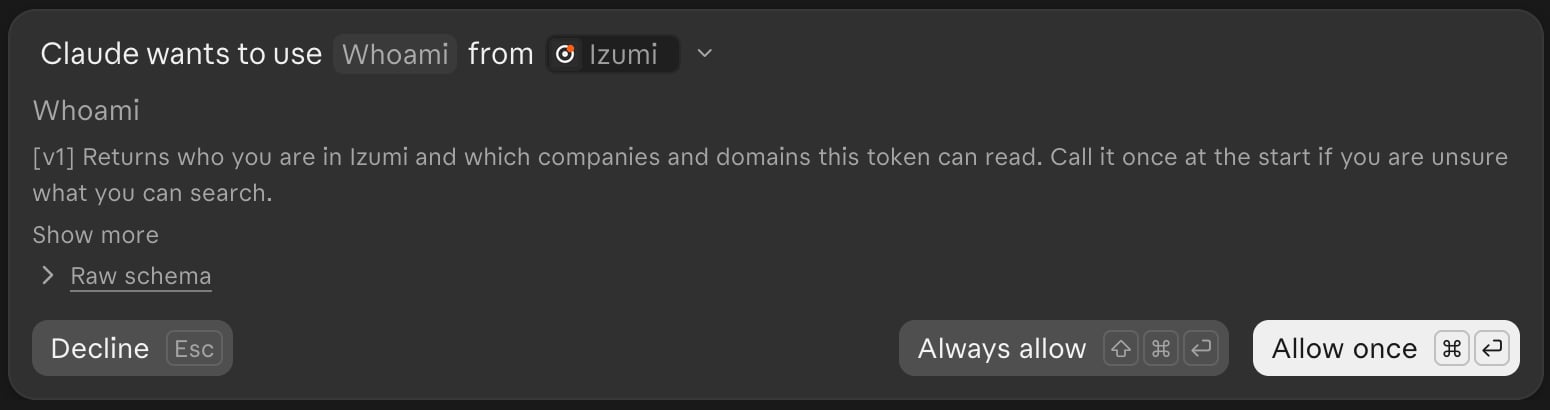
read, propose) and when the connection expires.8
Ask about your documents and propose a note (optional)
For example: “Call search: where is the API migration guide, then get_document for the best hit. Then who_knows for the topic API migration, then propose_note in the domain Product.” Approve each call. For 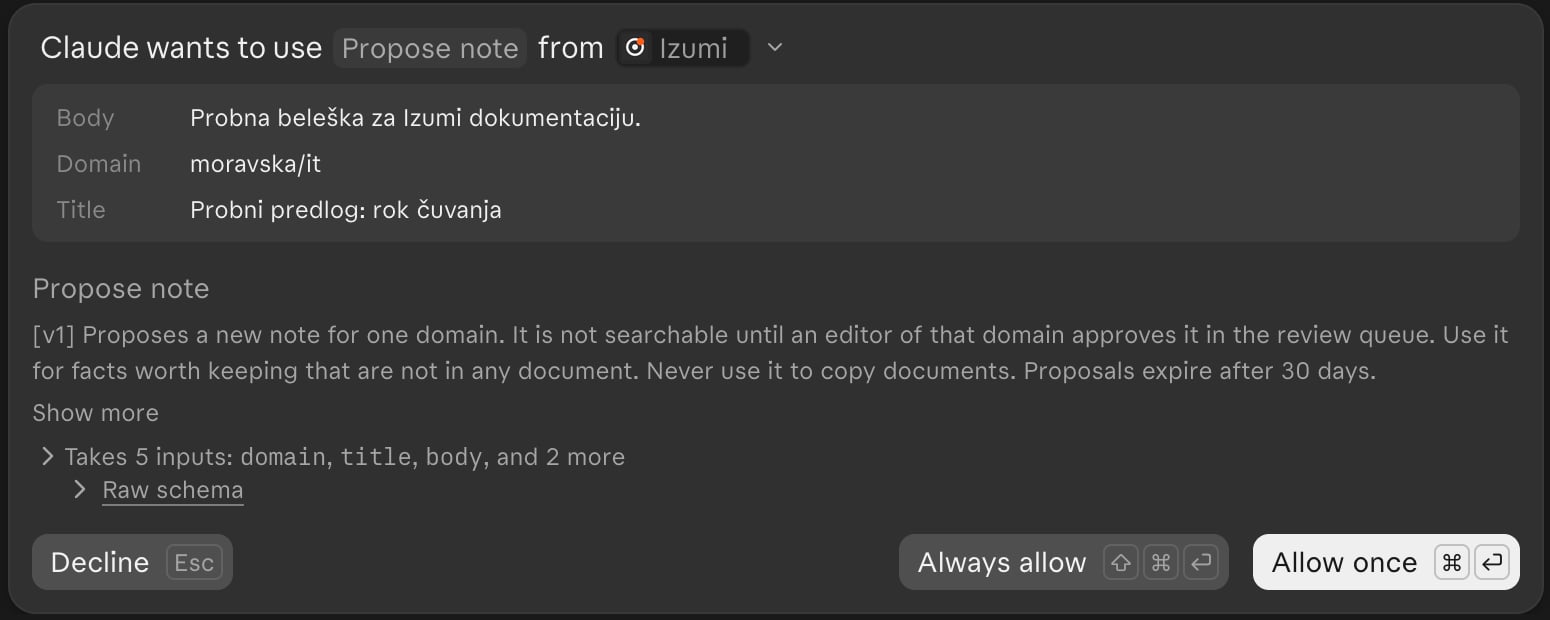
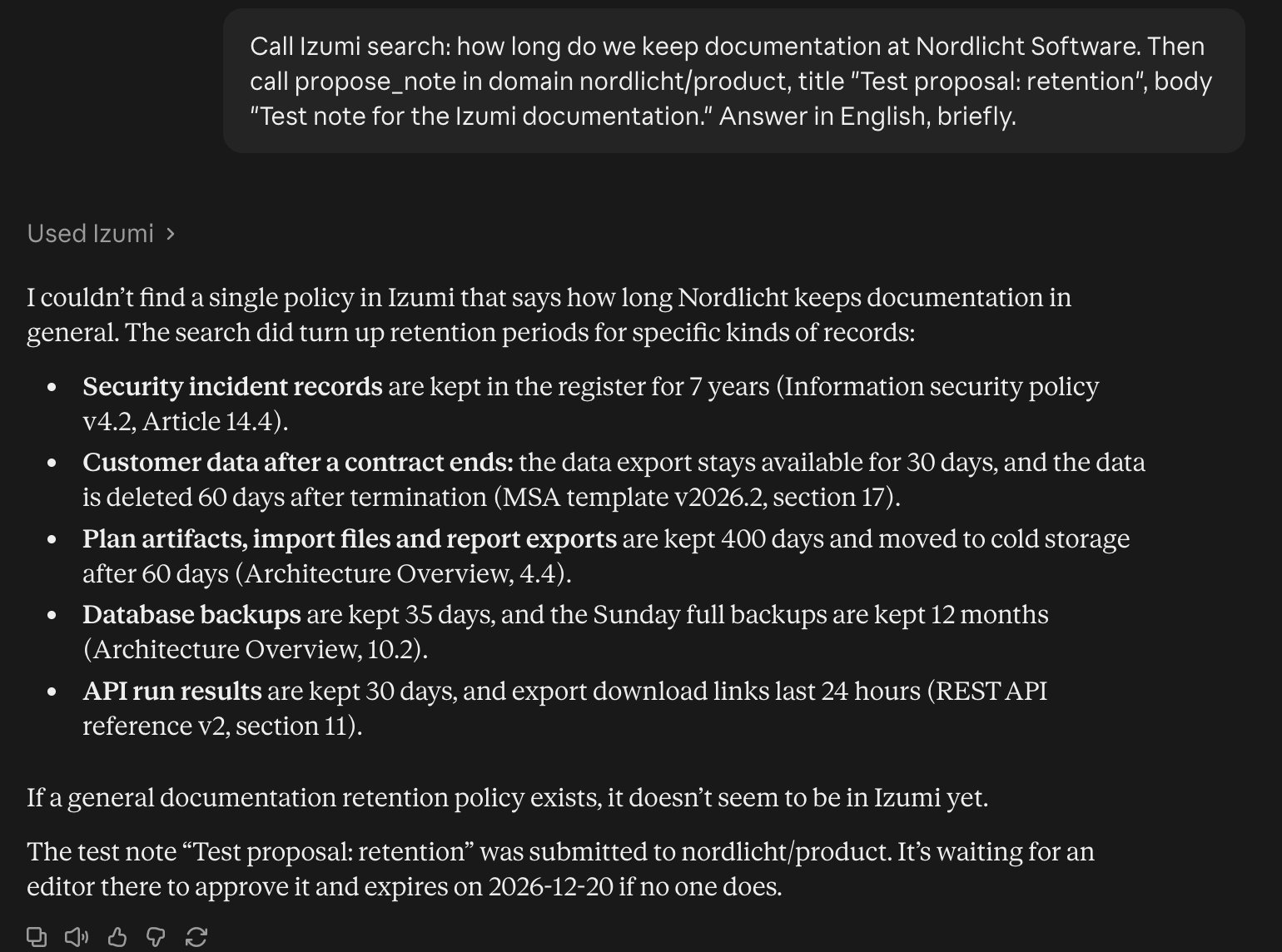
propose_note, review the domain, title and text before you click Allow once.9
Check the proposal in Izumi
Open the Review queue, tab Pending. The row shows who proposed it and the client (Claude). An editor of the domain chooses Approve or Reject. If the proposal is yours, you can withdraw it with Withdraw.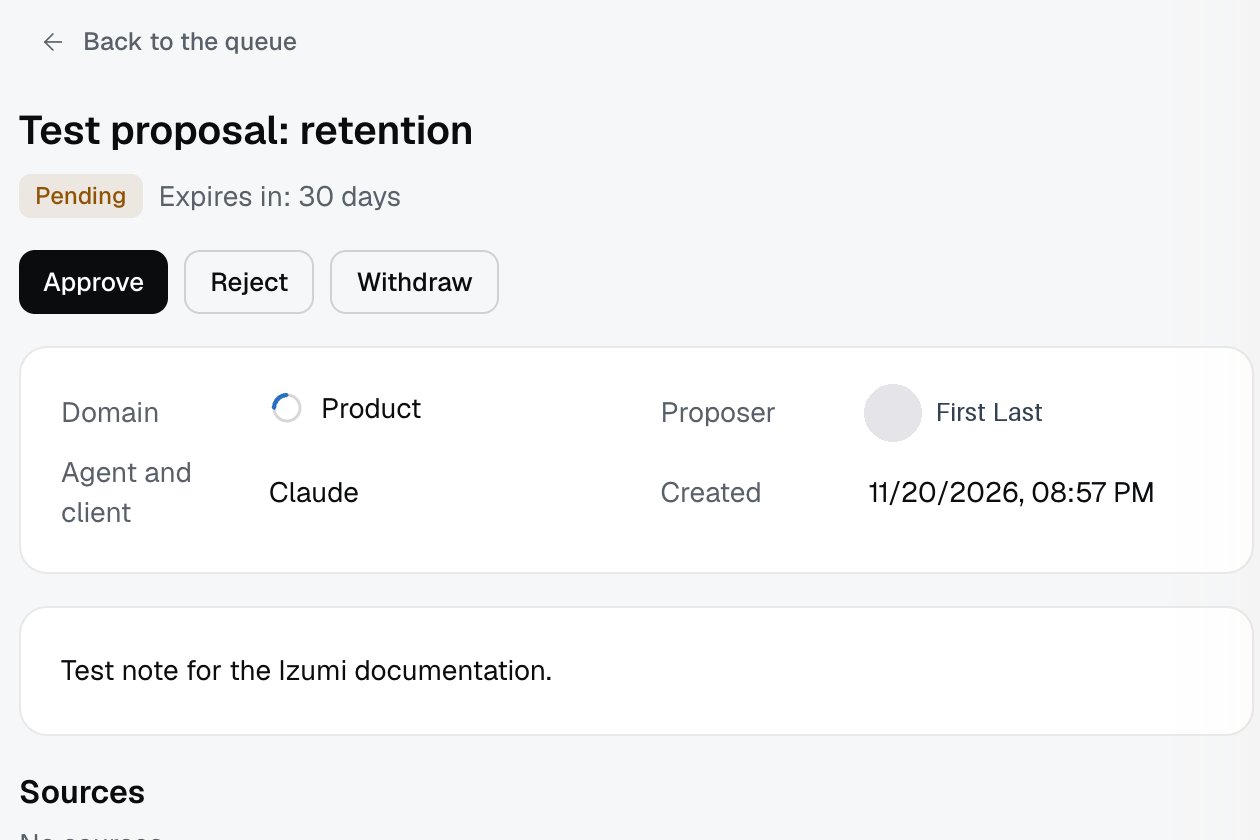
Some screenshots on this page show a chat in Serbian, because the check ran with Serbian questions. The Izumi tool texts in them are English.
Claude Desktop
Desktop is the same account and the same connector as claude.ai. You add nothing: the connector you added in claude.ai appeared in Desktop by itself, with your older chats. The Izumi tools, the approval page and the 90-day connection are the same.The Desktop screenshots in this section come from a run with the Serbian demo company, Moravska Trgovina. Claude Desktop itself is in English.
Where the connector is
- In the left menu click Plugins.
-
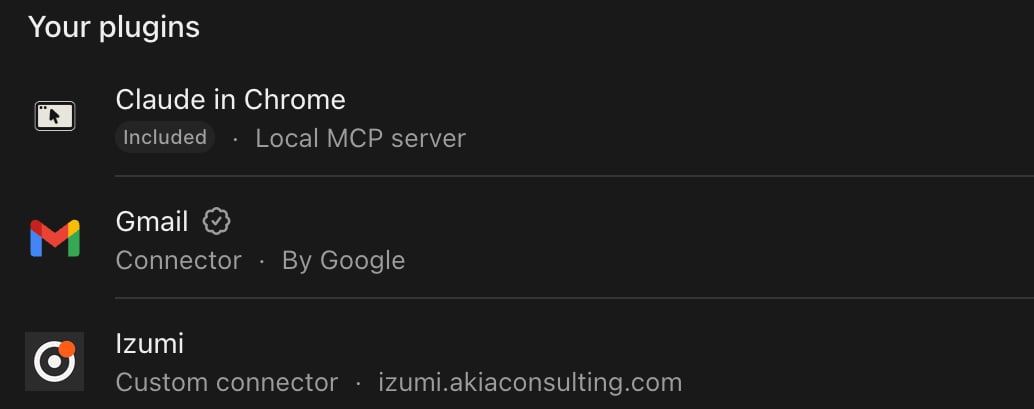
Izumi is in the list Your plugins, marked Custom connector, with the address izumi.akiaconsulting.com.
-
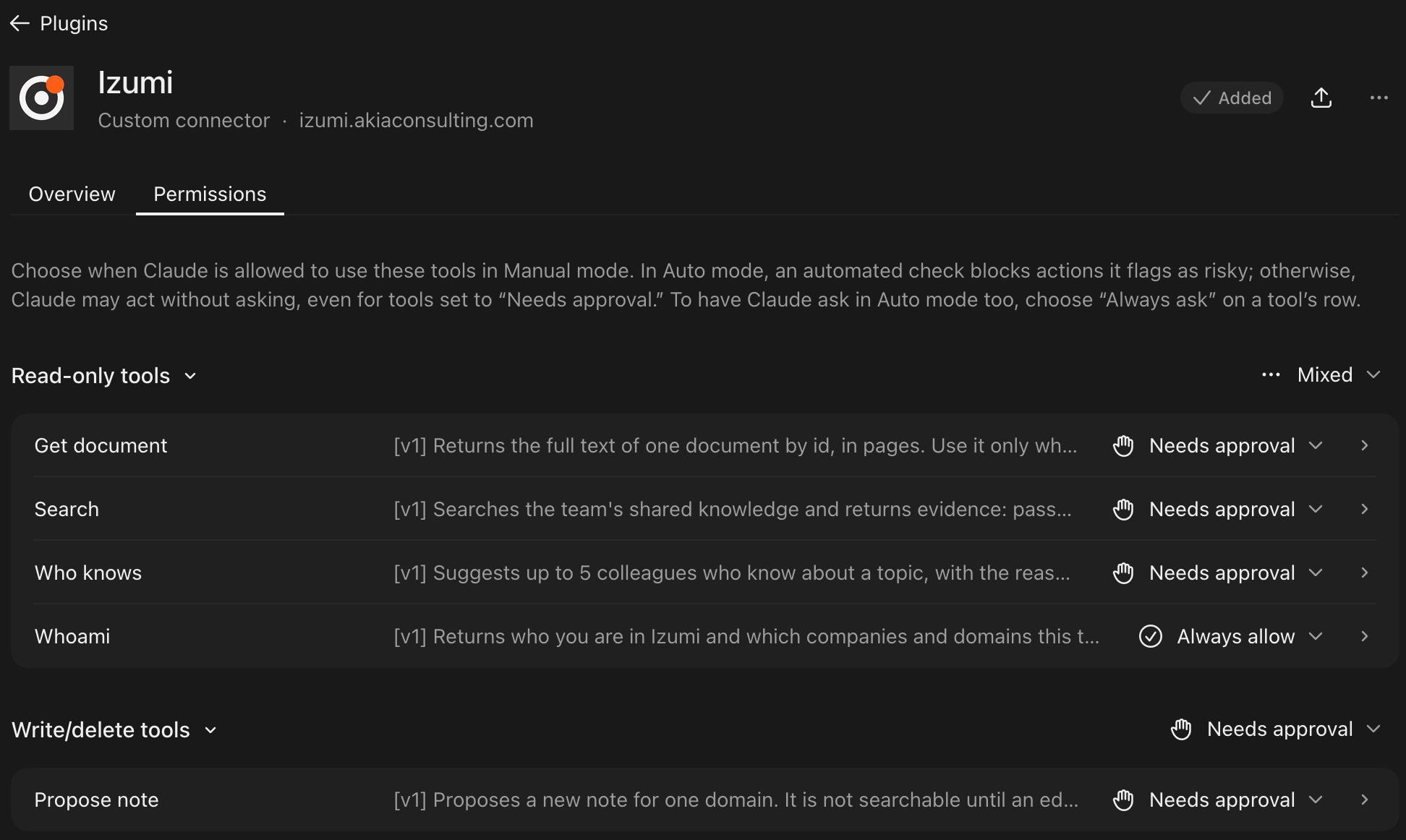
A click on the Izumi row opens the details: the Added label and the … menu. The Permissions tab (next to Overview) explains the modes. In Manual mode you choose when Claude may use tools. In Auto mode an automatic check blocks actions it marks as risky, and otherwise Claude may work without asking, even for tools set to Needs approval. All Izumi tools are on Needs approval by default. In the screenshot Whoami is on Always allow and the group says Mixed: Always allow is remembered per tool, so it was left over from an earlier click in the permission question.
Call a tool in Desktop
- Open a new chat (New) and check that Izumi is on (+, Plugins).
- Ask, for example: “Call the Izumi tool whoami and tell me who I am. Then call search: how long do we keep documentation in Moravska Trgovina?”
-
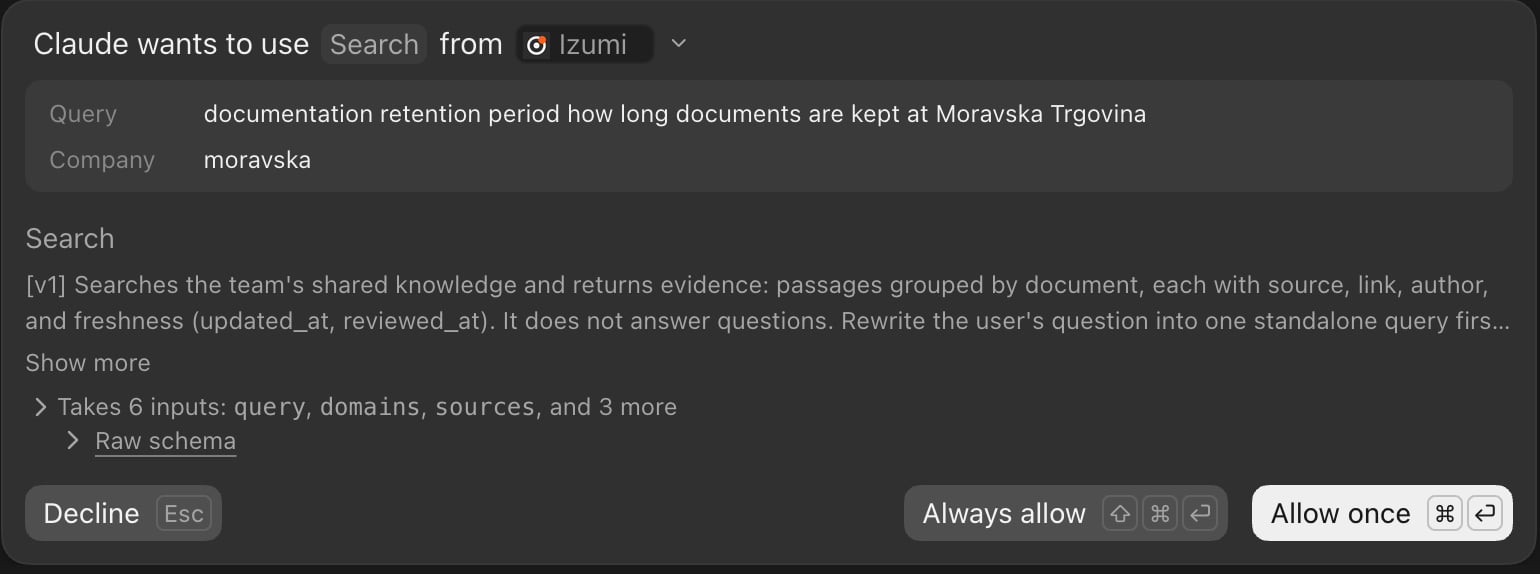
In Manual mode Desktop asks for permission for every tool separately (except tools set to Always allow): “Claude wants to use Search from Izumi”, with Decline, Always allow and Allow once. While it waits, the chat shows Needs your input.
-
whoamishows your name, the connection (scopesreadandpropose, expiry 90 days) and companies and domains with your role.searchreturns an answer with sources and links to documents.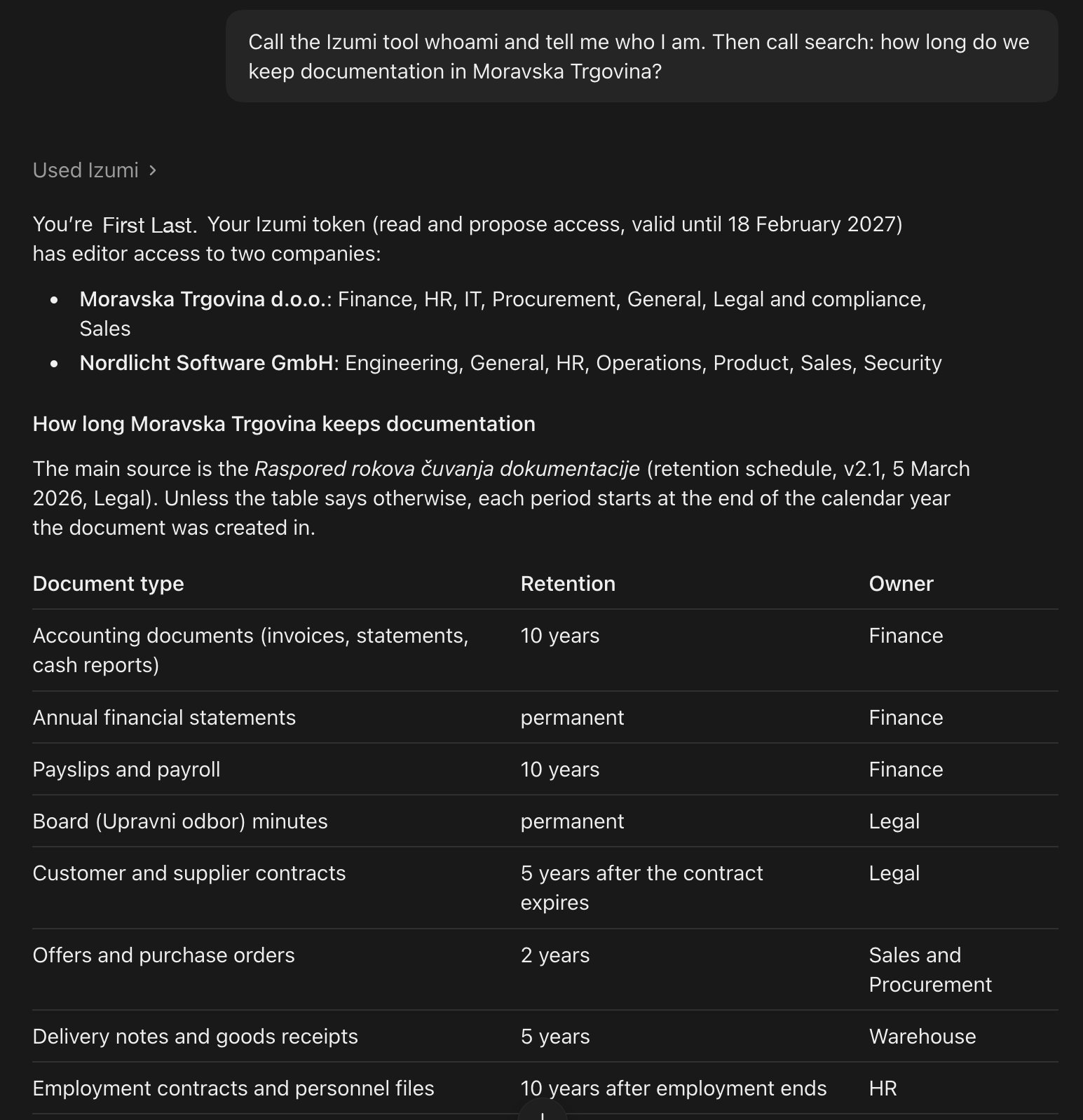
See and revoke the connection
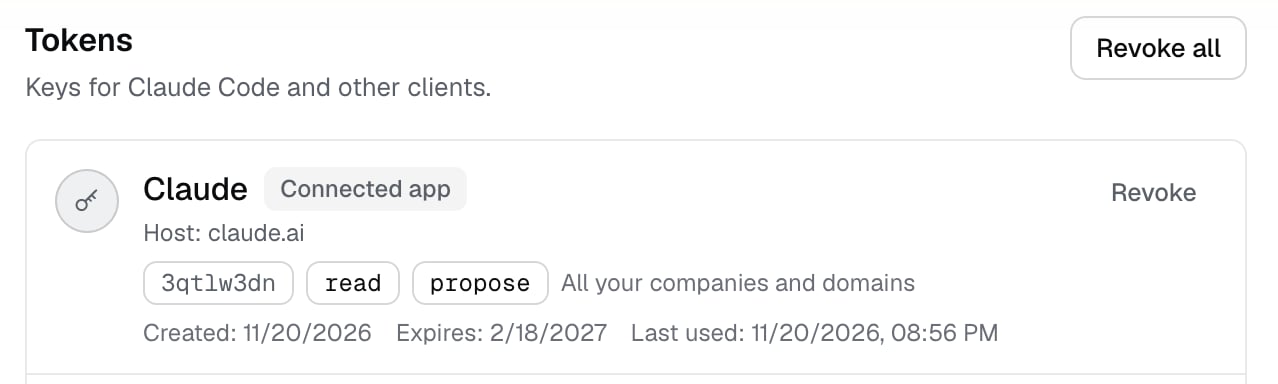
In Izumi open My tokens and profile. The connection is a row marked Connected app, with the name Claude and the addressclaude.ai. Click Revoke. The connection ends at once, without a confirmation.
Reconnect after a revoke
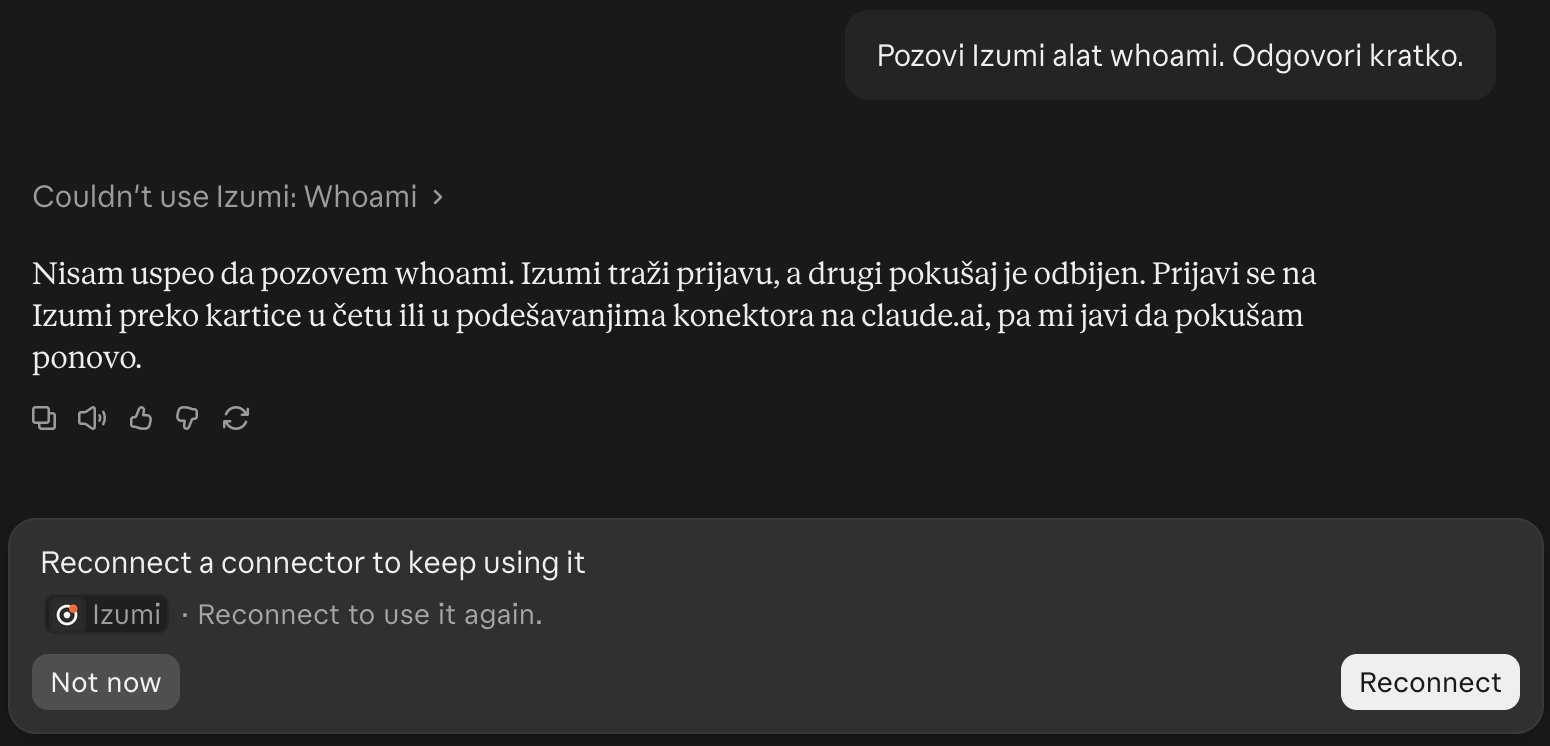
In claude.ai:- On the next call Claude asks for tool approval again, then says it failed (“Couldn’t use Izumi: Whoami”). Izumi asks for a new sign-in.
- Under the message box there is a card “Reconnect a connector to keep using it” with Not now and Reconnect.
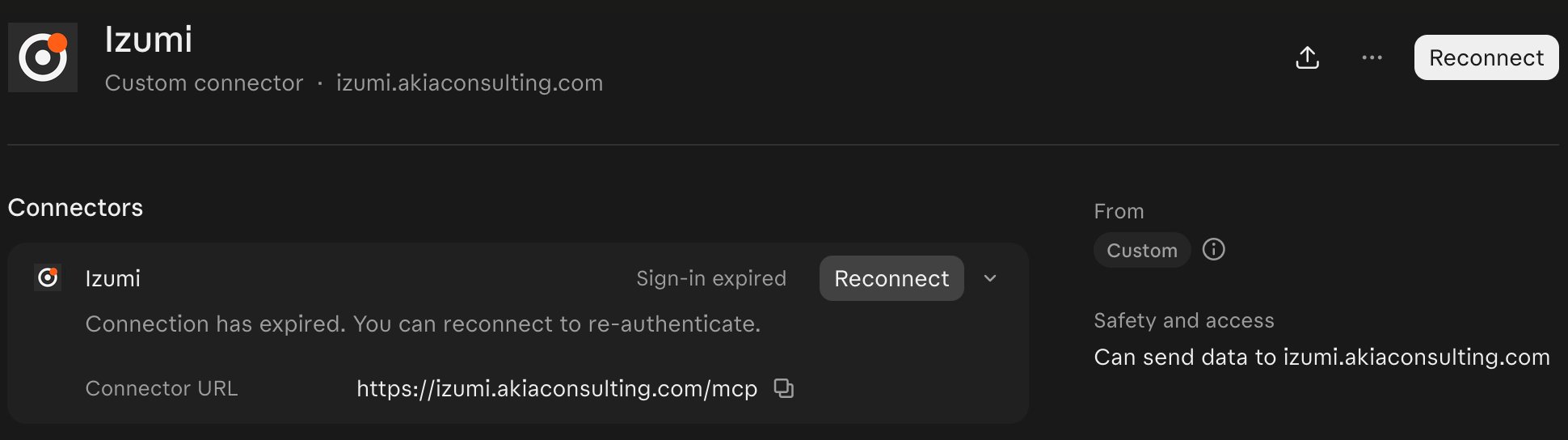
- In Plugins, Izumi it says Sign-in expired and “Connection has expired. You can reconnect to re-authenticate.” with a Reconnect button (top right and in the connector row). Disconnect is in the … menu. Reconnect leads to the same approval page. After you approve, all calls work again.
-
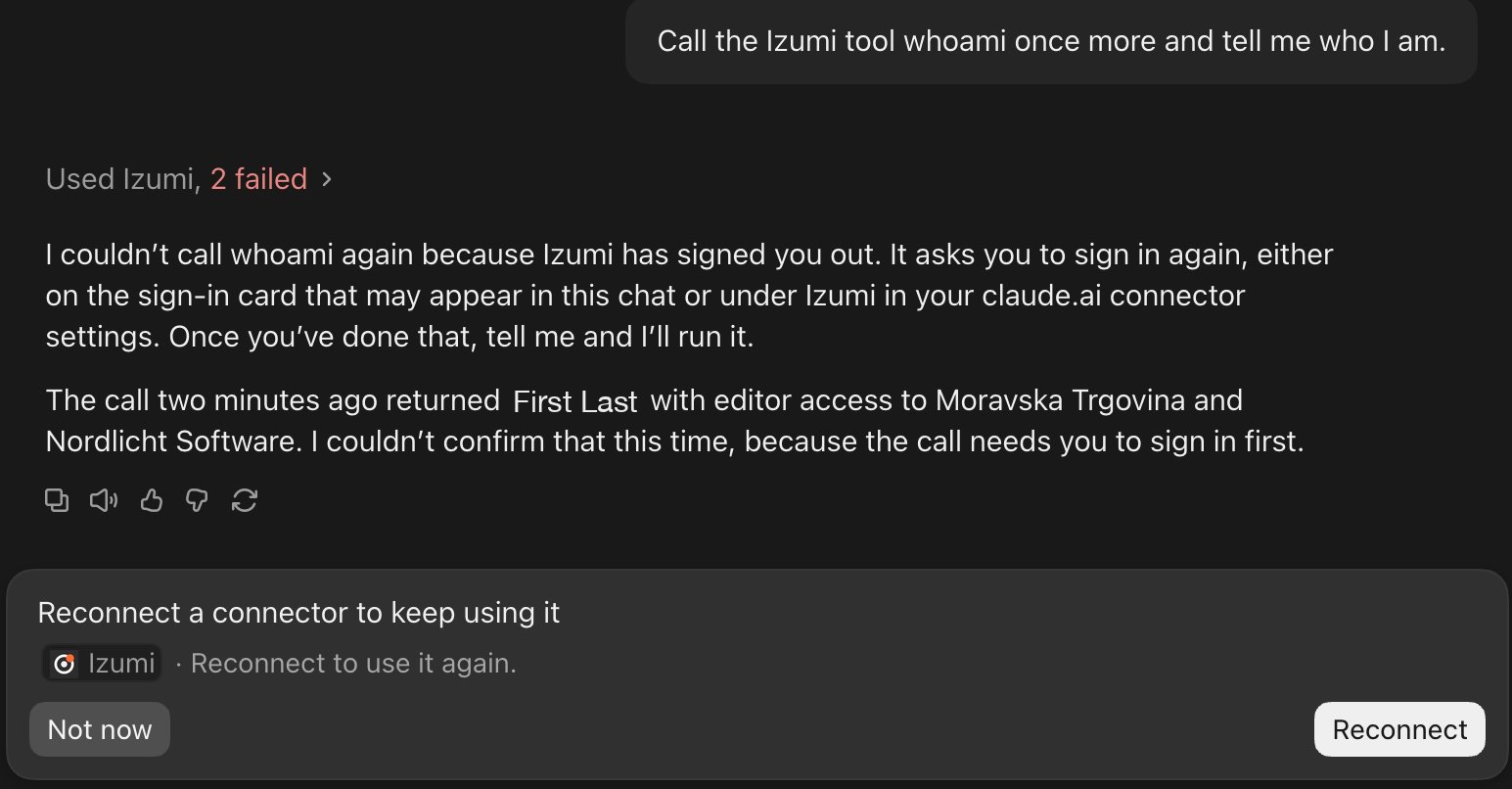
The same call fails. Claude tries twice, says a new sign-in is needed, and the same card with Reconnect appears under the chat.
-
Reconnect opens the browser, not a window in the app. First the claude.ai page “Finish connecting a connector?” appears. Continue only if you started the connection from Claude Desktop. The Continue connecting button is grey at first.

-
Then the Izumi page “Connect Claude to Izumi” appears with Verified: claude.ai and the buttons Approve and Deny.
-
After Approve return to Desktop. In the same chat
whoamiworks, with a new connection (a changed prefix and expiry).
Remove the connector
- Revoke the connection in Izumi (above).
- In claude.ai: Plugins, Izumi, the … menu (it also has Refresh tools list and Disconnect), Remove, then confirm “Delete Izumi?” with the Delete button. The dialog reminds you that you need the server address to add it again.
Limits
- The plan Pro was checked. A custom connector is added with no extra steps and all five tools work, including
propose_note. - On the day of the check the mode was Manual: every tool call asks for approval (Allow once), except tools you set to Always allow. Always allow is remembered per tool.
- claude.ai sometimes offers “Switch to Auto mode?” (Stay in Manual or Switch to Auto). In Auto mode an automatic check blocks risky actions and Claude does the rest without asking. This changes a setting of your Claude account and is not part of connecting to Izumi.
- A connection lasts 90 days from the last approval. After that claude.ai shows Sign-in expired and asks for Reconnect.
- The approval page shows the name you are signed in as in Izumi. If it is not your account, do not approve.
Troubleshooting
- Verified: claude.ai is missing, or the page says the client is not verified: the server cannot confirm the client’s identity. Approve only if the name and address match what you expect.
- Sign-in expired or “Connection has expired”: the connection was revoked, expired or ended in Izumi. Go to Plugins, Izumi, Reconnect, then Approve.
-
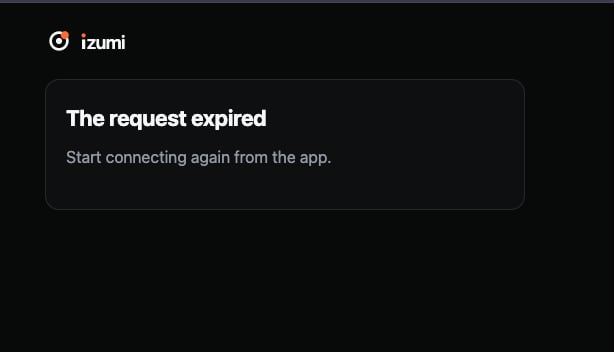
After Approve it says “The request expired / Start connecting again from the app.” Check before you start over: the connection probably already succeeded. In one check the server issued access, and a second submission of the same form was refused. The cause is not known.
- After a revoke the tool approval window appears twice before the message that the call failed. Click Decline, and the Reconnect card appears.
- The connector icon is the letter “A” instead of the Izumi mark. This is a known issue and the cause is not yet determined.
- Izumi is not in the list in +, Plugins: the connector was removed or switched off. Add it again or turn the switch on.
-
forbidden_scopeonpropose_note: the connection was made without theproposescope. Revoke it and connect again with suggest notes that an editor reviews ticked. This error was checked live only in Claude Code. -
searchdoes not find a document: Claude sees only what you may see. Check that you can see the document in Documents. - After you remove the connector, check My tokens and profile and revoke what is left of the connection.