

How it works
- A provider shows up on the sign-in page only when both its client ID and its secret are set. An ID without a secret (or the other way round) stops the app at start.
- The redirect URIs are exactly
<TB_PUBLIC_URL>/v1/auth/google/callbackand<TB_PUBLIC_URL>/v1/auth/entra/callback, without a trailing slash. - After every change to
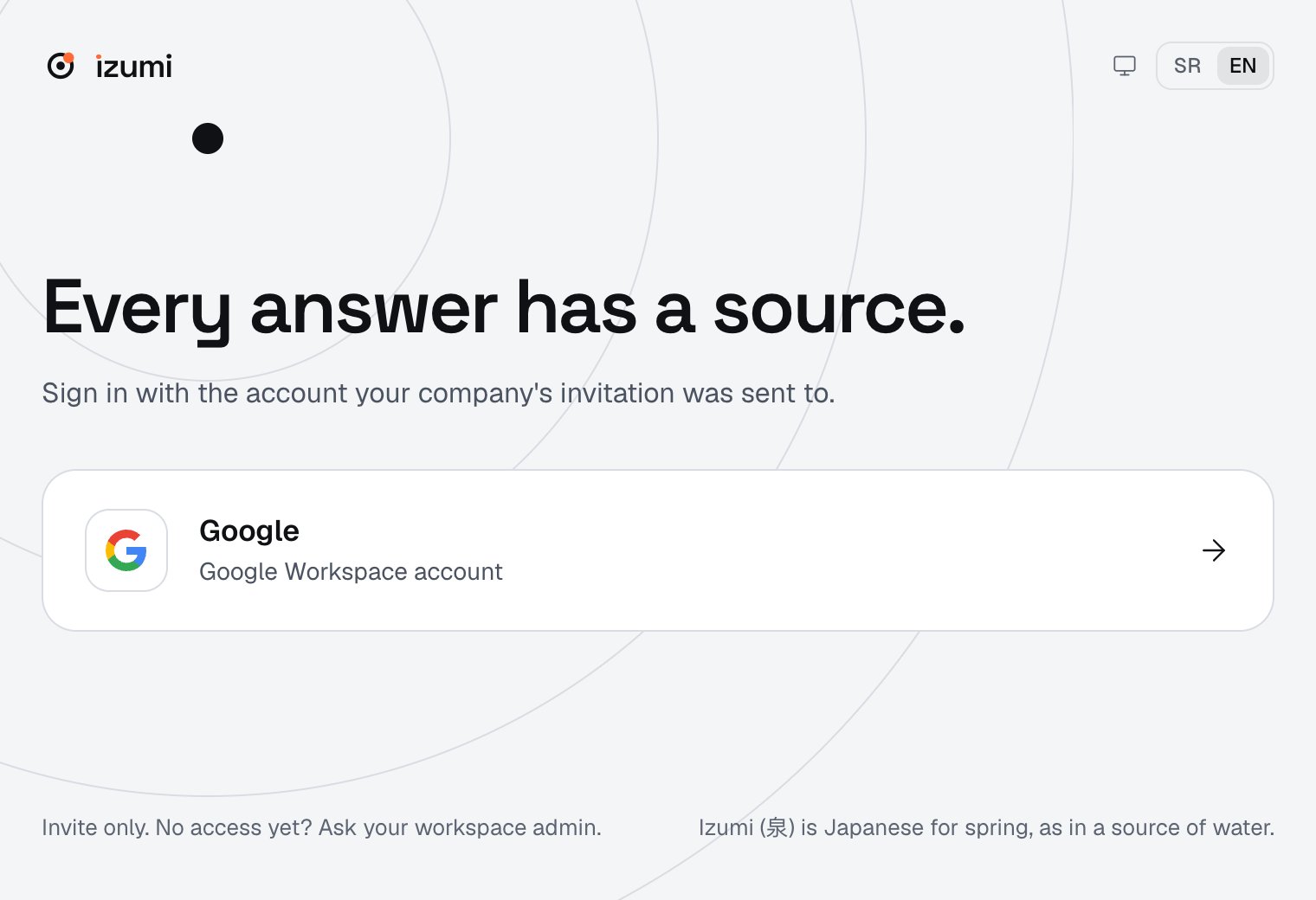
.envrundocker compose up -d app. - When no provider is set up, the sign-in page says “Sign-in is not set up yet. Ask the operator of this installation.”
1
Create an OAuth client
In the Google Cloud console open
APIs and Services, Credentials, Create credentials, OAuth client ID, type Web application.2
Add the redirect URI
Under
Authorized redirect URIs add <TB_PUBLIC_URL>/v1/auth/google/callback.3
Put the ID and secret into .env
The client ID goes into
TB_OIDC_GOOGLE_CLIENT_ID and the secret into TB_OIDC_GOOGLE_CLIENT_SECRET. Then docker compose up -d app.- The scopes are
openid email profile. - Izumi trusts only addresses that Google has verified.
Microsoft (Entra ID)
1
Create an app registration
In the Entra admin center open
App registrations, New registration. For the default TB_OIDC_ENTRA_TENANT=organizations choose Accounts in any organizational directory. For a single tenant choose one tenant and put its GUID into TB_OIDC_ENTRA_TENANT. Personal Microsoft accounts are rejected.2
Add the redirect URI
Under
Authentication add the platform Web with the address <TB_PUBLIC_URL>/v1/auth/entra/callback.3
Create a client secret
Under
Certificates & secrets create a client secret. Its Value (not the Secret ID) goes into TB_OIDC_ENTRA_CLIENT_SECRET, and the Application (client) ID goes into TB_OIDC_ENTRA_CLIENT_ID. Write down the secret’s expiry date.4
Add the optional claim email
Under
Token configuration add the optional claim email to the ID token. Without it Izumi compares preferred_username with the invitation, which can differ from the invited address.5
Restart the app
docker compose up -d app. The Microsoft button appears on the sign-in page.Who can sign in
- Sign-in needs an invitation. Invitations are created by a company admin in the app, see People and invitations.
- Every company can restrict who may accept an invitation (allowed Google domains, allowed Microsoft tenants) in its settings, see Companies, domains, roles.
Limits
- Sign-in with a Microsoft account has not been checked live (HC-OA-10 is open). Before you offer it to a company that uses Microsoft 365, go through the whole flow once on a test tenant.
- The app has no password sign-in and no other provider.